How to Use BVA Decision Search
BVA Decision Search lets you read and count real Board of Veterans' Appeals decisions. You can find cases on your condition, see grant and denial rates, build simple charts, and see how individual judges have ruled. This guide walks through both views, every field and filter group, the chart builder, Judge research, saved searches and Reset, in plain words. Everything here describes what the Board has already decided. It is research, not a prediction, and not legal advice.
What This Tool Does, and the Two Views
The tool searches the full text of hundreds of thousands of published Board decisions. You can use it to read example cases, to see outcome rates, or to build a chart that compares groups. It opens in the Simple view by default. A toggle at the top switches you to the Advanced view.
- Simple: plain-language questions grouped into four collapsible sections, Secondary conditions and Aggravation, Statistics by Condition, Deeper questions, and Decision Text and specific scenarios. Open a section, pick a question, type your condition, and the tool sets up the search for you. Best if you are new or want a fast answer.
- Advanced: the full form with every field, the filter editor, the chart builder and Judge research. Best when you want exact control over the search.
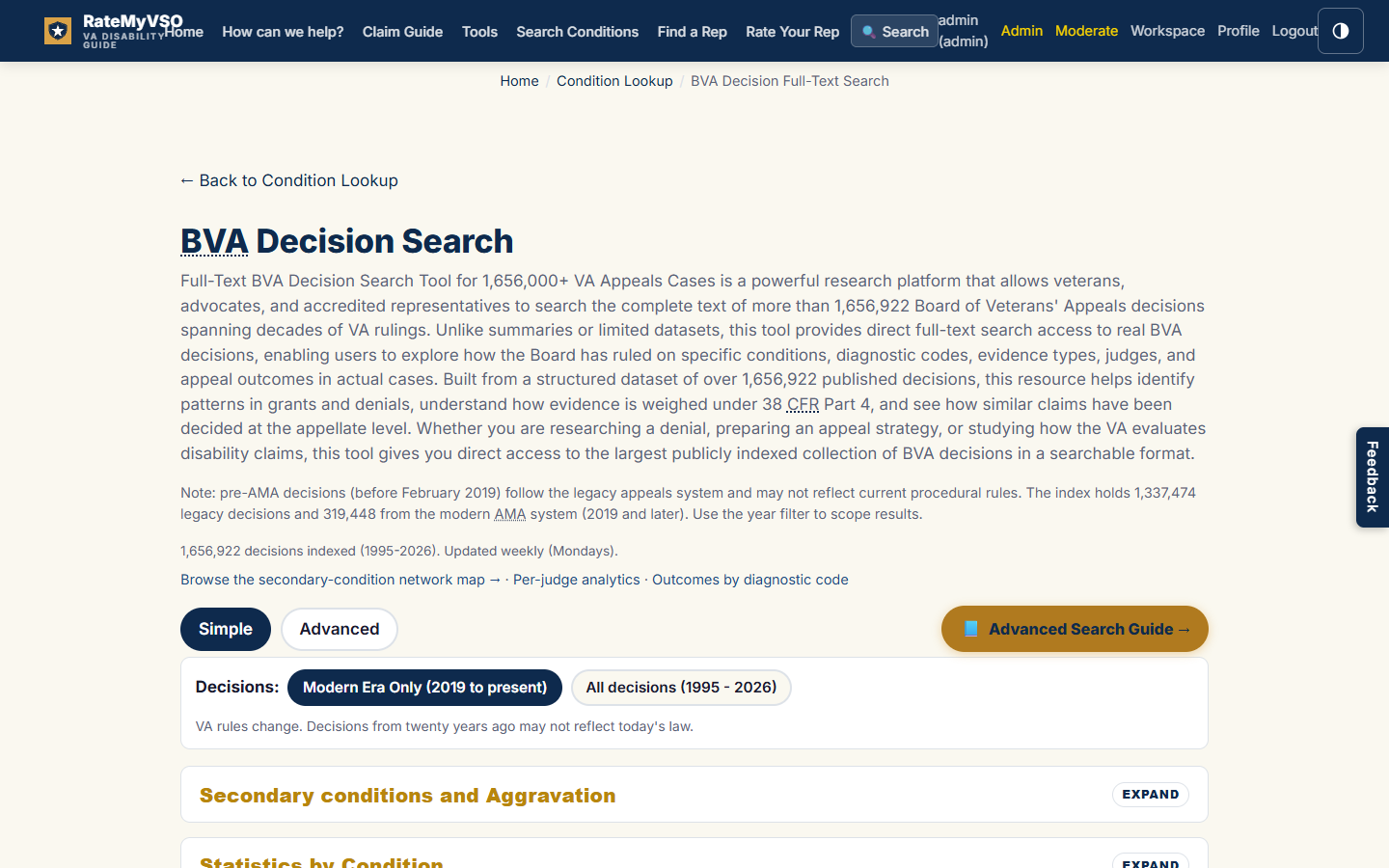
The Simple view. Open a section, pick a question, type your condition, and run it. Simple is unchanged by the Advanced redesign, so this screenshot is the existing one.
Both views search the same decisions and use the same data. Simple is a faster front door to the Advanced form: every question fills the Advanced fields and runs the same search, so a Simple answer and an Advanced answer built from the same choices are the same answer. You can switch at any time. Your choice is remembered for next visit.
Above the search form, About this search tool is a collapsed disclosure with an Expand button. It holds the explanation of what the index covers, how many decisions it holds, and the links to the secondary-condition network, per-judge analytics and outcomes by diagnostic code. It starts collapsed on every screen size, so the form is the first thing you reach.
The Advanced Modes
In the Advanced view, a row of tabs at the top of the search surface sets what the tool shows. Pick one, then run it with the button at the bottom of the form. The button is named for the mode: Search decisions, Show statistics, Build chart, Research, or Refresh overview.
- BVA decisions: a list of real cases that match. Each result links to the full decision text. Use this to read how the Board handled a situation like yours.
- Statistics: the outcome numbers for one condition. It shows the grant, denial, and remand split, plus how often things like a private nexus letter or a hearing appeared. Use this for a quick read on one condition.
- Explore, build a chart: a chart builder. You choose what to group by and what number to measure, and the tool returns a sorted table and a chart. Use this to compare years, theories, or conditions.
- Judge research: how the Board's judges have decided published cases. See the most-lenient and toughest judges on a condition, where one judge ranks, and how two judges compare. The Judge Research section covers it in full.
- Overview: a bird's-eye view of the whole corpus, headline totals, the grant, denial, and remand mix, the conditions granted most often, and trends by year. It ignores your filters and describes the full index. The tab appears when the overview snapshot is available. The Overview section below covers it.
Overview, Statistics, Explore, and Judge research report aggregate counts and rates. Read whether each chart counts decisions or issues. BVA decisions lists them. If you want to read cases, pick BVA decisions. If you want numbers, pick one of the others.
Your choices travel with you. Switching modes never clears what you typed. A field the new mode cannot use stays set and is listed in a Kept, not applied notice above the output, so a report never claims a filter it did not use. Outcome, Representative and Hearing format, for example, belong to the BVA decisions list; Statistics, Explore and Judge research compute from the issue-level criteria and say so. When you switch back to BVA decisions, they apply again.
Start a Decision Search
- Select the BVA decisions tab.
- Enter words, a quoted phrase, a condition, or a diagnostic code in the search box. You may leave the words empty and use the fields and filters alone.
- Choose Search in: Entire decision text, Rulings only, or Findings only.
- Add a Condition, a Secondary to condition, years, or an Outcome in the common row. For everything else, choose Open filter editor or a group in the filter rail.
- Choose Result order before running the search.
- Select Search decisions. Above the list, the Ordered by line states the order the server actually applied; there is no separate post-search sort control.
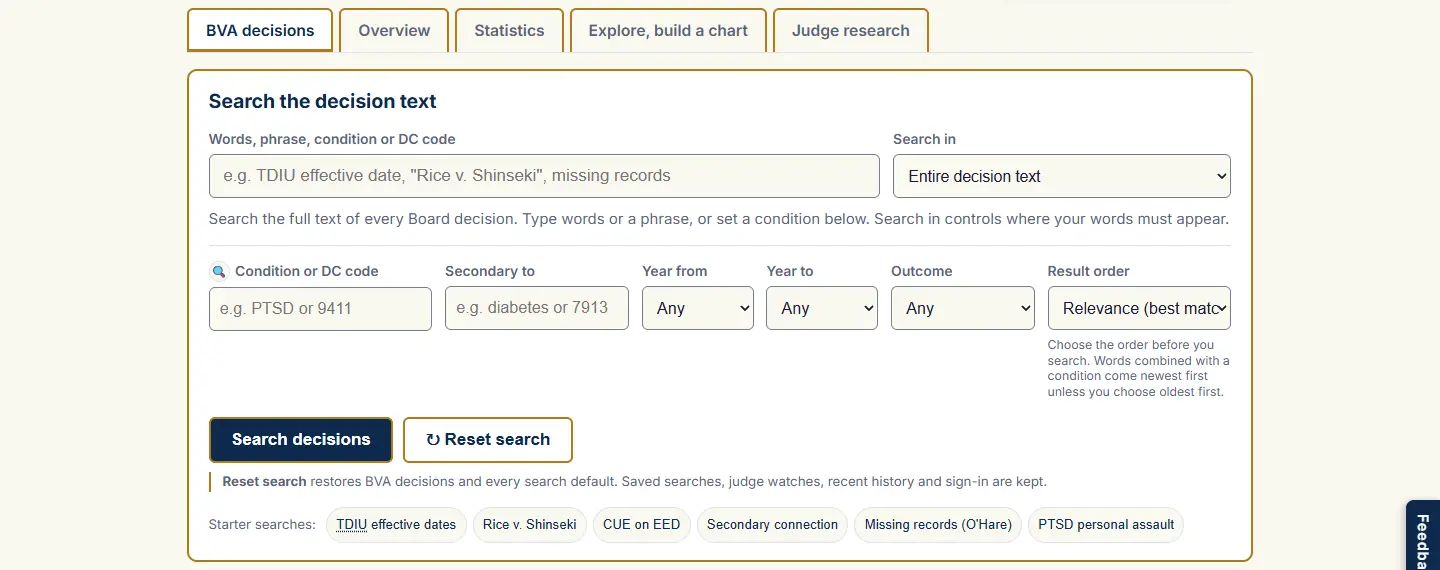
The Advanced search surface in BVA decisions mode. The words, scope, and order are part of the same search setup.
Edits do not change the current results. After a search, changing any field shows a line reading You have unapplied changes. The list below it keeps its original scope and order until you choose Search decisions again. Paging through the list also uses the search you ran, not the edits you have not applied.
Words and Secondary to. Entire-text searching cannot currently combine typed words with a Secondary to condition. If you set both with Search in on Entire decision text, the tool stops and asks you to remove one of them; both inputs are kept so nothing you typed is lost.
Every Search Field, Explained
These fields appear on the Advanced form, not the Simple view. You can use one or many. The more you fill in, the narrower your results. The common row sits under the search box; the rest live in the filter editor, a dialog with a group directory on the left and the fields of the chosen group on the right. Both sides scroll on their own, and the Cancel, Apply filters and Reset actions stay in the dialog footer.
The common row
- Search box: free text. Type a word, a phrase, or a case name. Put a phrase in quotes to match it exactly, like
"effective date". This searches the full text of decisions and is the field to use for keywords and case law. In Statistics and Explore the box is only an optional shortcut for a condition or "X secondary to Y"; free text is not a chart filter. In Judge research and Overview it is hidden and inactive. - Search in: where your typed words must appear: Entire decision text, Rulings only, or Findings only. It does not change the selected Condition. BVA decisions only.
- Condition: type a condition name like PTSD, or a diagnostic code like 9411, and pick from the list. This limits results to decisions that ruled on that condition.
- Secondary to: the primary condition. Use this to find cases claimed as secondary to, or aggravated by, the condition you type. Example: type diabetes to find conditions claimed secondary to diabetes. A code picked from the list means that exact code; a typed name can expand to the family of codes that share one rating formula, and the results say so with a chip for each member.
- Year from / Year to: an inclusive decision-year range. The start cannot be later than the end; the filter editor refuses to apply a reversed range and keeps the cursor on Year from.
- Outcome: grant, denial, remand, mixed, or unknown. Limits results to that result. BVA decisions mode only.
- Result order: relevance, newest first, or oldest first. Relevance puts the best match on top (see "How results are ranked" below for exactly what that means with and without quotes). BVA decisions only.
The filter editor: 13 groups
Choose Open filter editor in the rail, or any group name, to open the editor at that group. Type in the Find a filter box to narrow the directory. Edits inside the editor are a draft: Apply filters applies them and runs the current mode once; Cancel, the X, or Escape discards every change since the editor opened. Each group's name shows how many of its fields are set.
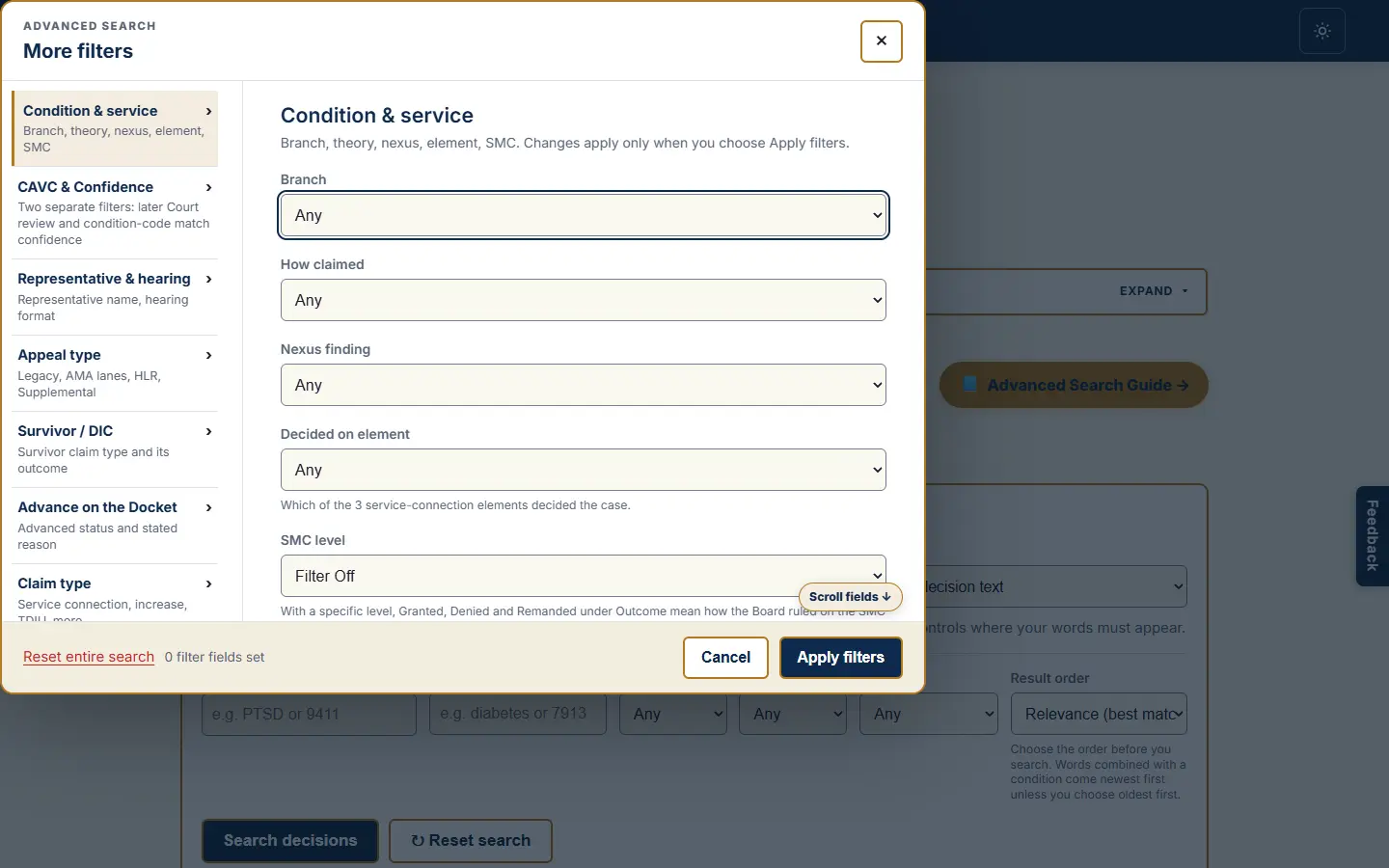
The filter editor at Condition and service. Both panes scroll; the footer actions remain available.
- Condition and service: Branch (the service branch, such as Army or Navy, works in Statistics and Explore as well); How claimed (the legal theory, such as direct, secondary, aggravation, presumptive, increased rating, effective date, TDIU, or CUE, how the claim was framed); Nexus finding (how the Board read the medical link on that issue: positive, negative, equivocal, or not reached); Decided on element (which of the three service-connection elements decided the case, the diagnosis, the in-service event, or Linked to Service, the nexus; a service-connected claim needs all three); SMC level; Same claim only; Appeals system (AMA-era only, 2019 and later, Legacy before 2019, or all; the Appeals Modernization Act changed the rules in 2019, so this filter keeps the two systems apart).
- SMC level, in more detail: Special Monthly Compensation. "Filter Off" applies no SMC filter. "Any SMC Level" covers all years and works in Statistics. The specific levels, SMC-K through SMC-T, come from our analyzed SMC subset. With a specific level and an Outcome of granted, denied or remanded, the outcome describes the SMC issue's own ruling; mixed and unknown still describe the decision as a whole. Same claim only is available with a Condition and a specific SMC level; it requires the two to belong to the same claim instead of assuming that separate issues in one decision are related.
- CAVC and Confidence: two independent filters. Reviewed by the Court matches a Board decision to a later Court of Appeals for Veterans Claims case. Code match confidence restricts how confidently the selected Condition was matched to a decided issue; it needs a Condition, and All codes keeps every confidence level. Confidence is not a measure of evidence strength or of Court review.
- Representative and hearing: Representative (the VSO or attorney, such as Disabled American Veterans; reliable for decisions before 2019, because AMA-era decisions do not list the rep in the published document); Hearing format (videoconference, virtual, Travel Board, Central Office, or DRO). Both are BVA decisions controls.
- Appeal type: the docket lane, such as Direct Review, Evidence Submission, Hearing, Higher-Level Review, or Supplemental Claim. Higher-Level Review and Supplemental Claim are regional-office reviews, so they are not offered in Judge research.
- Survivor / DIC: survivor or DIC (Dependency and Indemnity Compensation) claims: any survivor decision, cause of death, 38 USC 1318, or accrued benefits. The survivor-issue outcome (granted, denied, remanded, dismissed, or discussed but not ruled on) needs a claim type first and is separate from the whole-decision Outcome. For TDIU, use How claimed set to TDIU, which matches what the Board actually ruled on.
- Advance on the Docket: advanced or not advanced. With Yes, optionally select a recorded reason: age, terminal illness, serious illness, financial hardship, homelessness, or the Board's own motion. Most advanced decisions do not state the reason; selecting one narrows to those that do.
- Claim type: service connection, increased rating, earlier effective date, TDIU, SMC, DIC, or other. Several can occur in one decision; at least one selected type must match. Unchecked means any.
- Decision month: January through December. Combine with the year range for a particular month. Unchecked means any month.
- Evidence in the decision: a private medical opinion (which also covers a nexus letter or an IMO), and a buddy or lay statement. Finds decisions whose text cited that evidence. Presence does not mean the evidence caused the outcome.
- Service event / signal: MST, TBI, POW, and combat-related (1154(b)).
- Appeal status: substituted appellant, and withdrawn or dismissed.
- Conflict era: Vietnam, Korea, WWII, Gulf War (1991), and GWOT / Post-9/11 (the named Global War on Terror operations plus post-9/11 service). Two eras together mean either one.
- Presumption / exposure: Agent Orange, herbicide, Camp Lejeune, burn pits, PACT Act, radiation, asbestos, and Gulf War illness / MUCMI. Two exposures together mean either one. These cover all years, so use them rather than a date-limited toxic-exposure list.
Which fields each mode applies
| Field or group | BVA decisions | Statistics and Explore | Judge with a condition | Judge alone |
|---|---|---|---|---|
| Condition, Secondary to, How claimed, Appeals system, years, Branch, Nexus finding, Decided on element, SMC level, Code match confidence, decision months, evidence, service signals, conflict era, exposure, appeal type | Yes | Yes | Yes (no Higher-Level Review or Supplemental lane) | Years only |
| Outcome, Representative, Hearing format, Search in, Result order | Yes | Kept, not applied | Kept, not applied | Kept, not applied |
| Reviewed by the Court, Survivor / DIC and its outcome, Claim type, Advance on the Docket and its reason, Same claim only | Yes | Kept, not applied | Kept, not applied | Kept, not applied |
| Typed words | Yes | Only as a condition shortcut | Hidden | Hidden |
Overview applies nothing: it always describes the whole corpus. Statistics, Explore and Judge research apply at most twelve of the checkbox filters (evidence, service signals, appeal status, conflict era and exposure together); with more than twelve set, the tool asks you to remove some rather than silently ignoring the rest.
Dependent fields
Some fields only mean something with a partner. The tool clears and greys out a dependent field the moment its partner is missing, and explains why in a note under the field, so a stale value can never be sent by accident. How claimed offers only Any, Secondary to and Aggravation while a Secondary to condition (or the Primary condition axis in Explore) is set. The survivor-issue outcome needs a survivor claim type. The Advance on the Docket reason needs Yes. Code match confidence and Same claim only need a Condition. When the partner returns, the full choice list comes back, but the cleared value does not silently reapply.
How Results Are Ranked: Quotes vs No Quotes
The search behaves differently depending on whether you quote your words. Using knee pain as the example:
knee pain(no quotes): finds every decision containing both words anywhere in the text, even pages apart. That is a huge pile. The tool scores the pile by how often your words appear, takes the best 200, and then sorts those by meaning, asking "which of these is really about a painful knee?", and shows page one from that. This meaning step helps when you describe something in your own words: a search like "ringing in ears" can rank tinnitus rulings on top even though the decision used the medical term."knee pain"(with quotes): finds only decisions where those words appear side by side as an exact phrase. A much smaller, precise pile, ranked purely by how strongly the text matches. No meaning step, quotes tell the tool "I know exactly what I want," and nothing second-guesses you.
Two things never change either way: the set of matching decisions is decided by your words alone (the meaning step only re-orders, it never adds or removes results), and searches using quotes, citation numbers, or legal terms of art always keep exact, predictable ranking. Researchers who want fully deterministic ordering: quote your phrases, or choose a date order.
One more case: typing a condition name. If your search text matches a known condition ("colon cancer", "PTSD"), the tool switches to that condition's diagnostic code and lists the decisions that actually ruled on it, so the list agrees with the Statistics view. Some codes cover several conditions (the digestive-cancer code covers colon, esophageal, and stomach cancer together), so the recent decisions are ordered by how closely each matches the words you typed, colon-cancer rulings first when you typed colon cancer. Choosing "newest first" instead gives plain date order.
Words plus a Condition. When you type words and also set a Condition, a request for relevance order is answered newest first, and the Ordered by line above the results says so. An explicit request for oldest first is honored as oldest first.
Where a hit lands now matters
Every Board decision has the same anatomy: a short list of rulings ("Service connection for sleep apnea is granted"), a FINDINGS OF FACT section listing what the Board established, and many pages of legal discussion. The search knows the difference: a hit inside a ruling sentence counts roughly ten times a hit in the discussion, and a hit in the findings about four times. So a decision that actually decided a sleep apnea claim outranks one that merely mentions sleep apnea in passing. Each result card also shows the decision's ruling line, so you can see the outcome without opening it.
The "Search in" dropdown beside the search box takes this further. "Entire decision text" is the normal search. "Rulings only" restricts your words to the ruling sentences themselves: every result actually decided the thing you typed. "Findings only" restricts them to the FINDINGS OF FACT section, useful for researching what facts the Board established ("private nexus opinion", "continuity of symptomatology"). Both narrow scopes search a small, precise slice of each decision, so expect far fewer results than the whole-decision search, that is the feature, not a malfunction. Narrow scopes always use exact, predictable ranking (the meaning step never applies to them). If a narrow scope cannot apply to what you typed, the results line says so instead of serving a whole-text count under a Rulings-only label.
Reading Decision Results
Check the citation, date, judge, matched code, and overall outcome. Ruling states what the Board decided; Findings states the facts it established; the excerpt provides surrounding text. A condition's this issue outcome can differ from the whole decision's outcome.
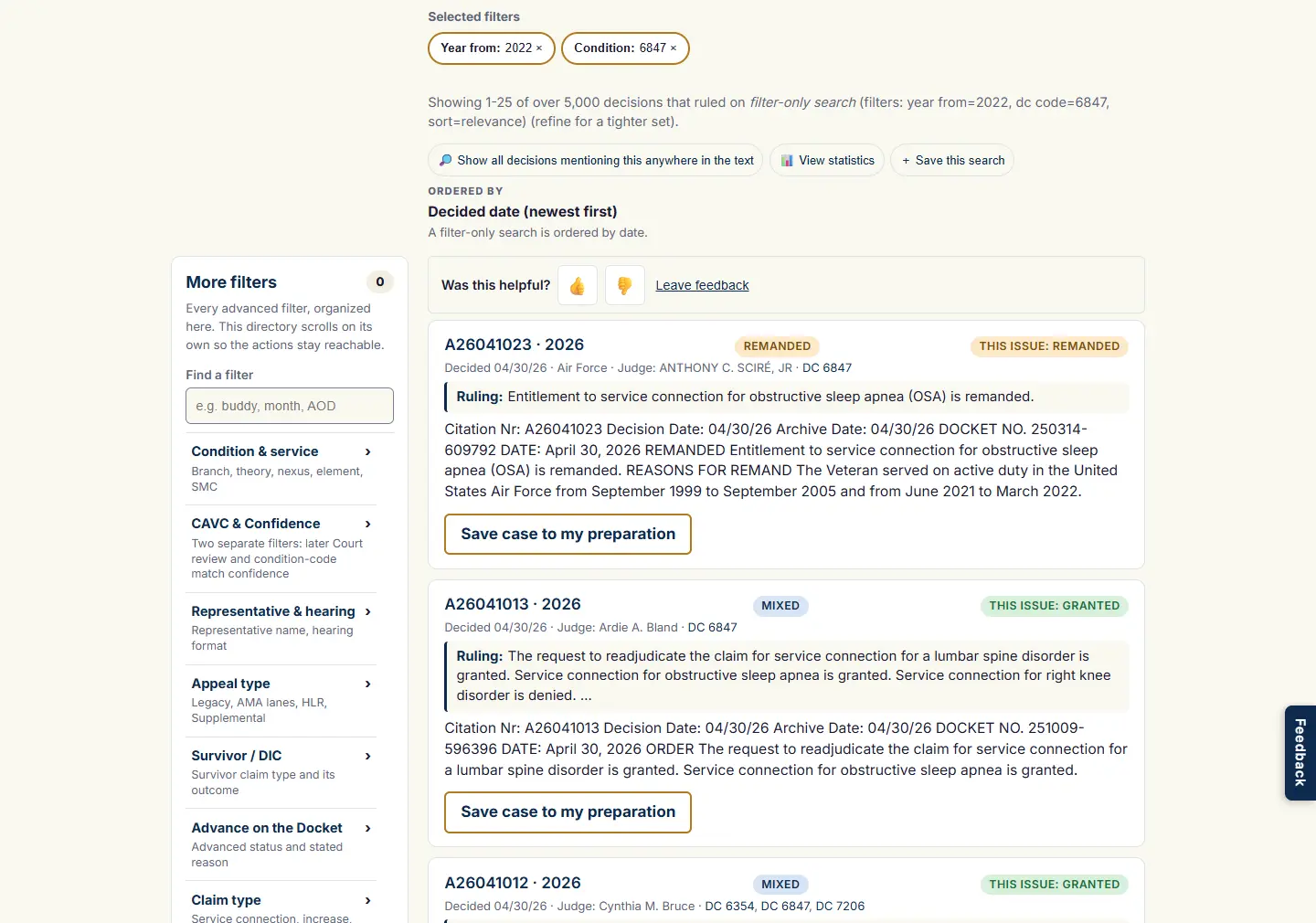
Inspect the issue and the source document, not only the outcome colour.
Open the full decision for context. The citation-copy, share, source, save-to-preparation, and document-reader actions stay attached to their decision. Find within the reader moves between occurrences. Pagination changes the page of the same applied search. Highlighting locates words; it does not prove the reason for the ruling.
After a condition-resolved search, the results line offers Show all decisions mentioning the condition anywhere in the text, or Show only decisions that ruled on it. This result action switches between mentions and the ruled-on path. It is distinct from Search in, which chooses where typed words must appear.
Above the list, Selected filters shows every criterion the form currently holds as a chip; the cross on a chip clears that field and any field that depends on it. A chip drawn in the muted style is kept for BVA decisions but not applied by the current mode. Was this helpful? under the results opens the usefulness rating and optional comment form.
Statistics for a Selected Scope
- Select the Statistics tab.
- Set a Condition, or type a condition name or code in the box as a shortcut. For an exact secondary relationship, set Condition, Secondary to, and How claimed = Secondary to.
- Add years or supported filters and select Show statistics.
Read the unit and denominator on every result. One decision can contain several issues. Win rate excludes remands from the decided-issue denominator, while a share of all issues includes them. A comparison of recorded evidence groups shows association, not causation. Statistics with fewer than 30 issues carry a small-sample warning. Back to BVA decisions returns you to the list you came from, with its scope and Search in choice. If you ran Statistics directly, Back runs the same criteria as a decisions list over the entire decision text.
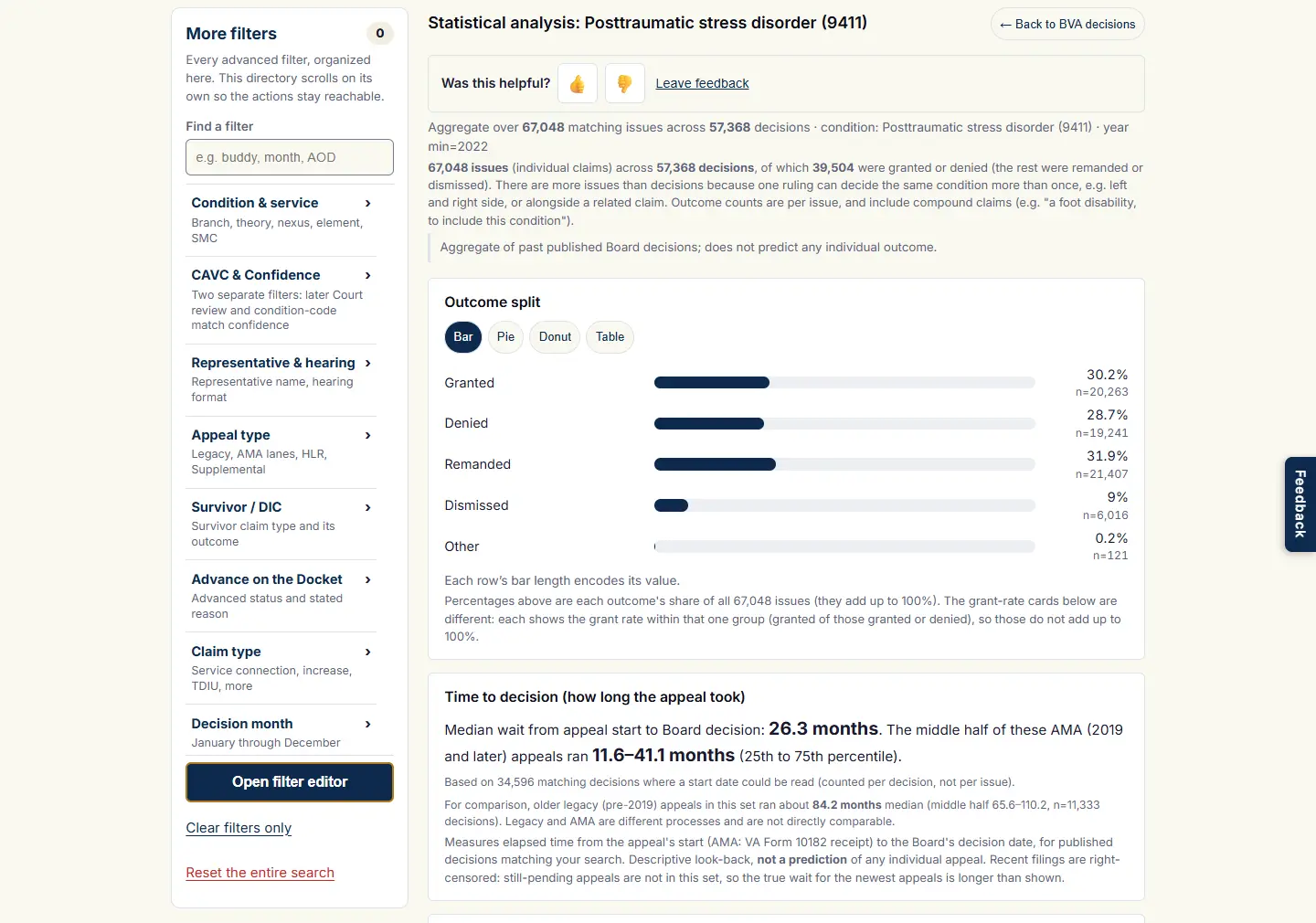
The selected scope and its denominators accompany the statistics.
Outcome, Representative, and Hearing format remain BVA decisions controls; when they are set, the Kept, not applied notice lists them. Specific SMC levels bound the statistics to that level's decisions; Any SMC level is a plain flag. If a shortcut in the box and a selected Condition disagree, the selected Condition wins, and the report names the condition it used. When the yearly trend is available but other breakdowns were skipped for size, the trend is still shown with a note about what was skipped.
Explore, the Chart Builder
Explore turns the corpus into a sorted table and a chart. You set a few dropdowns and the tool aggregates the selected issue or decision measure for you. Here are the controls.
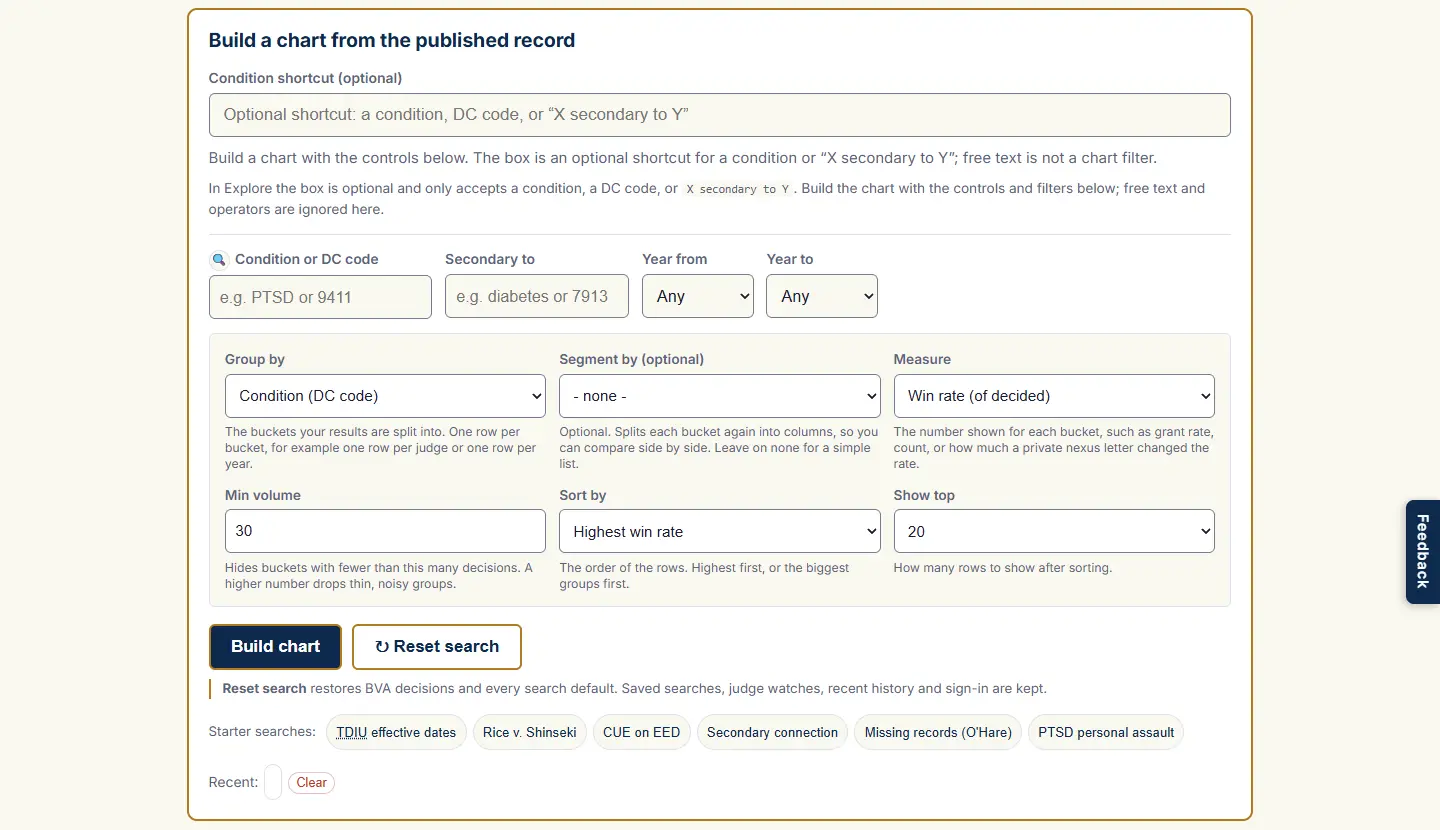
The Explore controls: grouping, optional segment, measure, minimum volume, order, and top count.
- Group by: the buckets your results are split into. You get one row per bucket:
- Condition (DC code): one row per diagnostic code that was claimed.
- Primary condition (secondary to / aggravated by): one row per primary condition that the claimed condition was tied to as a secondary or an aggravation. Only single-primary claims are attributed, so no claim is counted under more than one primary.
- Legal theory: one row per way the claim was framed, such as direct, secondary, aggravation, presumptive, increased rating, effective date, TDIU, or CUE.
- Medical opinion language: one row per strength of the nexus opinion, such as supportive, at least as likely as not, speculative, or none.
- Nexus opinion source: one row per source of the medical opinion, such as a private doctor, a VA C&P exam, both, or none.
- Claim type: one row per type of claim, such as service connection or increased rating.
- Missing element (denials): among denied issues only, one row per element the Board found missing, such as no current diagnosis, no in-service event, or no nexus.
- Representation: one row per representative type, such as an attorney, a VSO like DAV or VFW, a state agency, or pro se.
- Judge: one row per Board judge.
- Service branch: one row per branch, such as Army, Navy, Air Force, Marine Corps, or Coast Guard.
- Year: one row per decision year.
- Hearing held: two rows, cases with a Board hearing and cases without one.
- AMA docket, Board-found mechanism, Wait-time bucket, Advanced on the docket, Recorded advancement reason: the remaining five groupings. A claimed secondary or aggravation relationship is different from the mechanism the Board found. An advancement reason describes only decisions with a recorded reason.
- Segment by: optional. It splits each bucket again into columns, so you can compare side by side. Leave it on none for a simple list. The fourteen choices are the same dimensions as Group by minus the one you grouped by. Only Win rate and Volume (issues) support a segmented grid; for the other measures the segment is cleared and greyed out with a note. Distinct decisions cannot be segmented either, because the grid counts issues.
- Measure: the number shown for each bucket. The nine measures and their exact denominators are listed below.
- Min volume: hides buckets below this count; the measure names whether the unit is issues or decisions. The default is 30. A higher number drops thin, noisy groups.
- Sort by: the order of the rows. By rate puts the highest rate on top. By volume puts the biggest groups on top. Choosing Volume as the measure sets the sort to volume; you can still change it afterwards. Distinct decisions always come back ordered by decisions, and the table says so.
- Show top: how many rows to show after sorting: 10, 20, 50, 100 or 200.
The nine measures
- Win rate (of decided)
- Granted issues divided by granted plus denied issues. Remands are excluded.
- Grant rate (of all issues)
- Grants as a share of all included issues, including remands.
- Denial rate (of all)
- Denials as a share of all included issues.
- Remand rate (of all)
- Remands as a share of all included issues.
- Volume (issues)
- Counts issues; one decision may contain several.
- Decisions (distinct cases)
- Counts separate decisions within a group. A decision can appear in more than one group.
- Private-nexus lift
- How much the win rate changed when the file had a private medical opinion, compared to when it did not, in percentage points. Read the two cohort sizes. It cannot be grouped by Nexus opinion source, which would compare the measure with itself.
- Representation lift
- How much the win rate changed when the veteran had a representative, compared to going it alone, in percentage points. It cannot be grouped by Representation.
- Time to decision
- The median number of months from the start of the appeal to the Board's decision, with the 25th and 75th percentiles, for AMA appeals only. Only Condition, years and decision months scope it, and it can be grouped by year, condition, branch, judge, representation, or hearing only. While it is selected, years before 2019 are not offered.
Select Build chart after changing the setup; edits after a build are shown as pending, and the chart, table and CSV keep describing the build you ran. Bar charts compare groups, line charts show chronological years (two or more), pie and donut charts show compatible parts of a whole, and heatmaps show two-axis cells. The table exposes exact values. Zero, unavailable, and small-sample values are labelled separately. Download CSV writes the table with a first line naming the measure, the axes, the filters in words, the minimum, and the denominator; a grid exports each cell's value beside its decided count, and never invents a count the response did not carry.
Overview: A Bird's-Eye View of the Whole Corpus
The Overview mode is a single snapshot of the entire index, not a search. It ignores your filters and reports the whole corpus: headline totals, the overall grant, denial, and remand mix, the conditions granted most often, and how grant rates have moved by year. Use it to get your bearings before you narrow down.
- Open the Advanced view, then select the Overview tab. The tab is present when the snapshot is available.
- Select Refresh overview. There is nothing to fill in. The snapshot covers every published decision in the index.
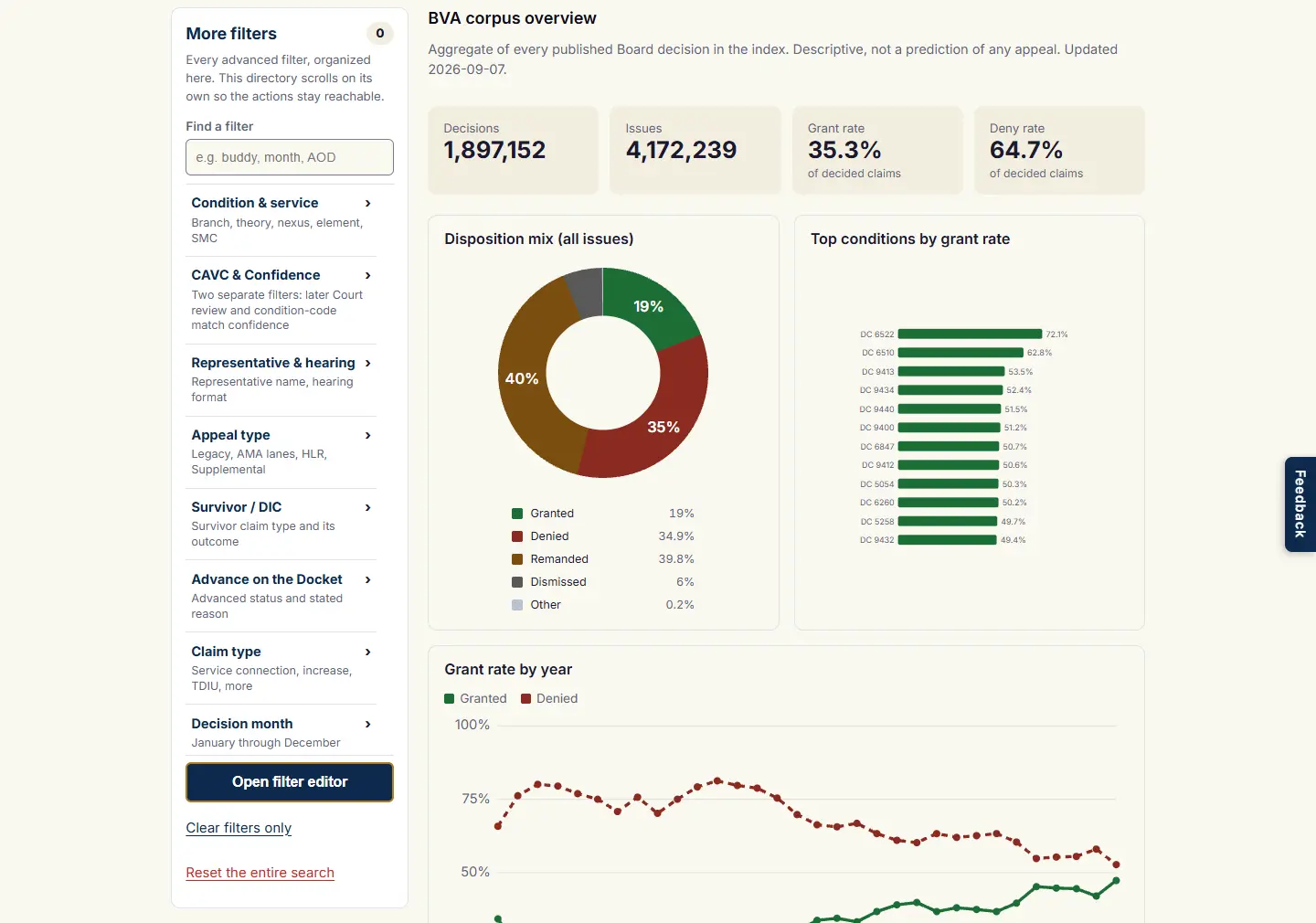
Overview is explicitly corpus-wide; selected search filters are kept but not applied, and the form is locked while it is shown.
What you get: the size of the index, the overall grant, denial, and remand split, the conditions with the highest grant rates, and the year-by-year trend, with the date the snapshot was built. It is descriptive background on the whole archive, not a read on any one claim.
Recipes: Combining the Controls
Here are common questions and how to set them up, step by step. Each one ends with a screenshot of the setup. Set the Appeals system to AMA-era only for modern results.
The grant rate for one exact secondary claim
Statistics gives the grant, denial, and remand split for one specific claim. The example below is sleep apnea claimed secondary to PTSD.
- Open the Advanced view, then select the Statistics tab.
- In the Condition box, type sleep apnea and pick it from the list.
- In the Secondary to box, type PTSD and pick it from the list.
- Open the filter editor at Condition and service and set How claimed to Secondary to.
- For modern results, set Appeals system to AMA-era only.
- Choose Apply filters, which runs the statistics. Later changes run with Show statistics.
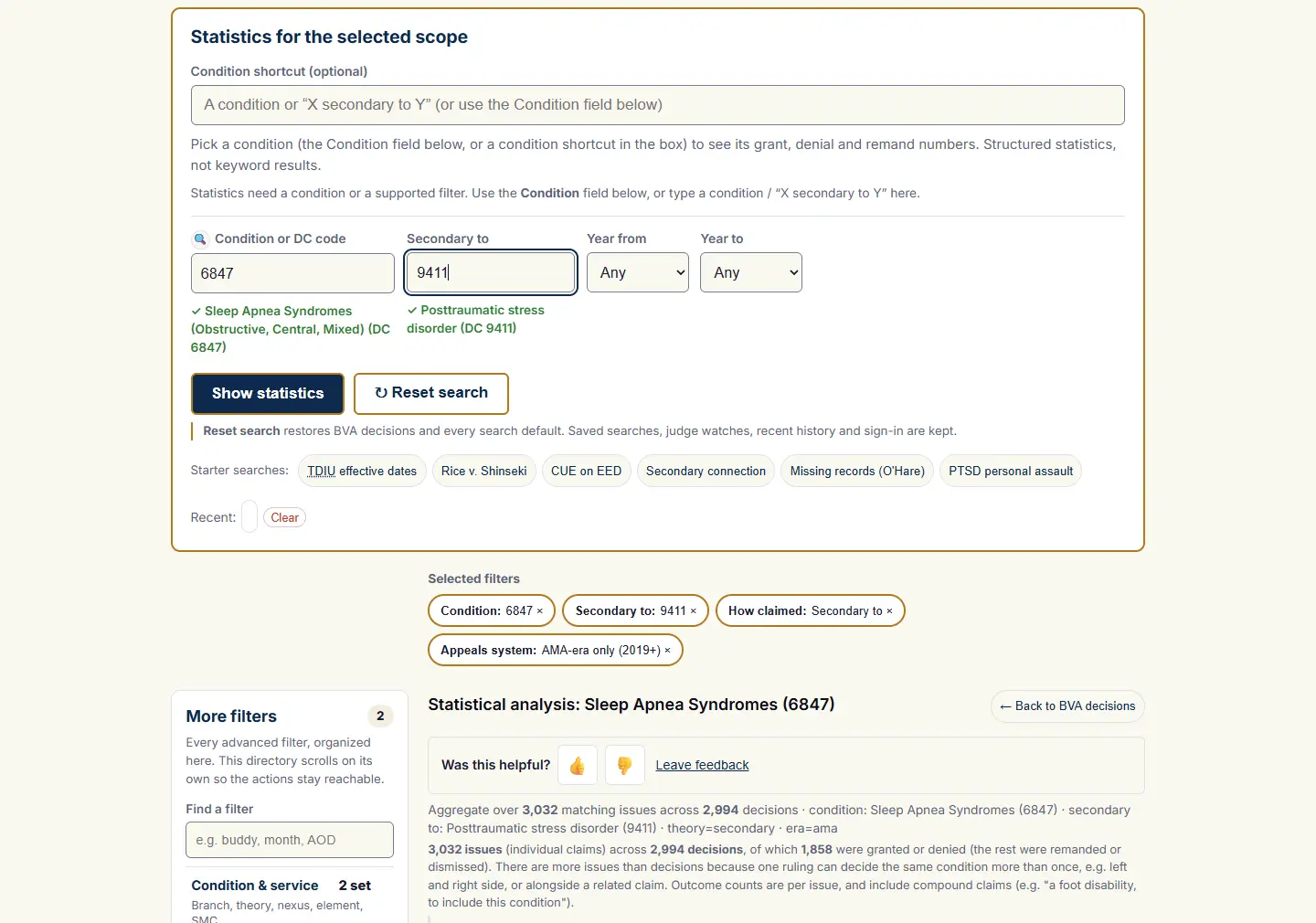
Statistics setup: sleep apnea (6847) claimed secondary to PTSD (9411).
What you get: the grant, denial, and remand split across published Board decisions on that exact claim. Read it as a pattern in past cases, not a promise about yours.
Does a private nexus opinion change the odds for that claim?
Explore can measure the private-nexus lift, how much the win rate changed when the file held a private medical opinion, for one specific claim, year by year. The example below is sleep apnea claimed secondary to PTSD.
- Open the Advanced view, then select the Explore, build a chart tab.
- In the Condition box, type sleep apnea and pick it from the list.
- In the Secondary to box, type PTSD and pick it from the list.
- Open the filter editor at Condition and service, set How claimed to Secondary to and, for modern results, Appeals system to AMA-era only, then Apply filters.
- Set Group by to Year.
- Set Measure to Private-nexus lift. Segment by is greyed out for a lift, which is a single-axis measure.
- Select Build chart.
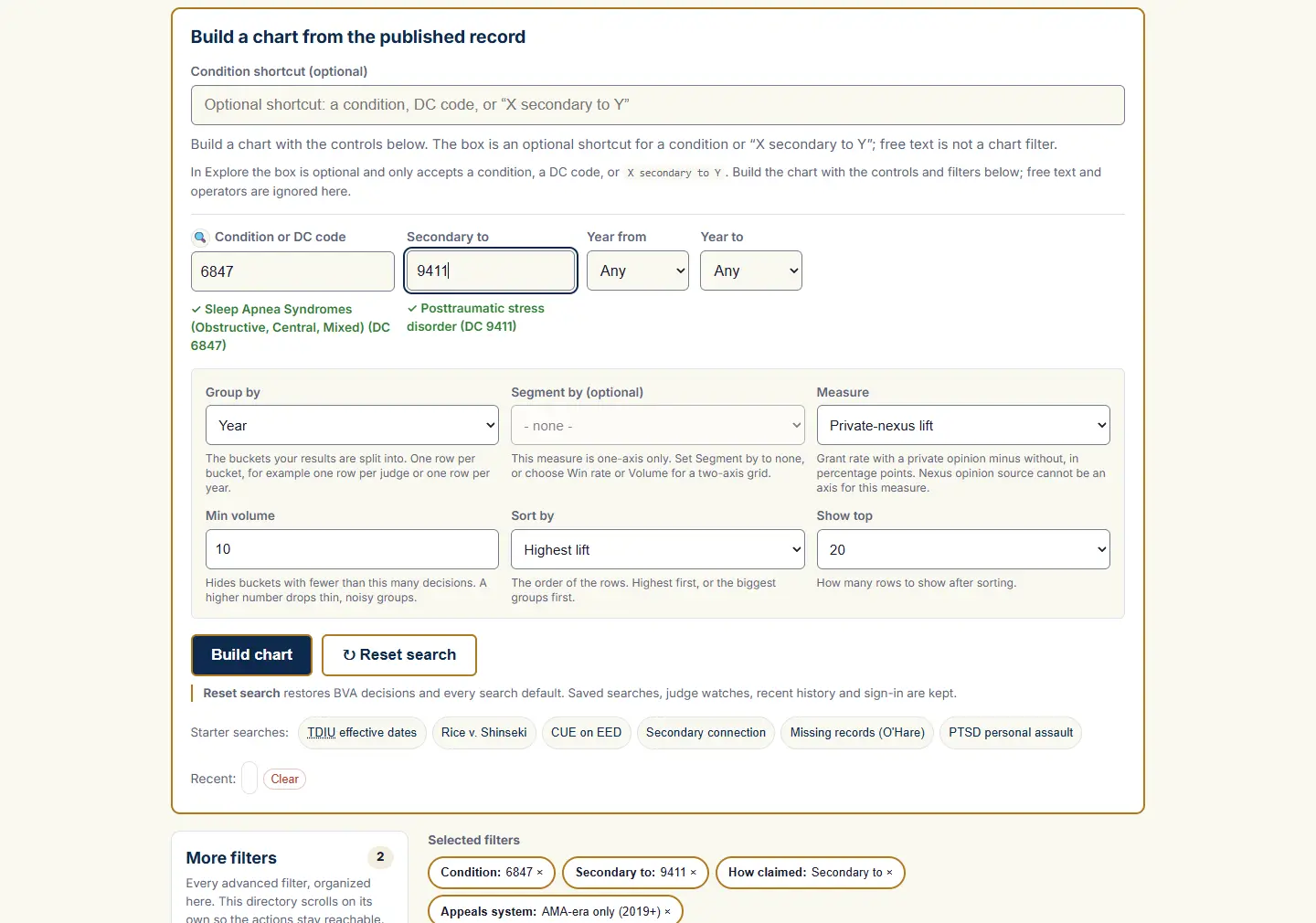
Explore: private-nexus lift by year for the selected secondary relationship.
What you get: for each year, how much higher or lower the win rate was when a private medical opinion was in the file. Small groups can swing a lot, so read the volumes alongside the lift.
What gets claimed as secondary to a condition I already have?
This is the one most veterans want. Start from a condition you are already service-connected for and see what others commonly claim off it, so you can spot issues you may be able to claim too. The example below uses diabetes.
- Open the Advanced view, then select the Explore, build a chart tab.
- In the Secondary to box, type the primary condition, like diabetes, and pick it. Leave the Condition box empty.
- Set Group by to Condition (DC code).
- Set Measure to Volume (issues); Sort by becomes Most issues.
- For modern results, open the filter editor, set Appeals system to AMA-era only and Apply filters.
- Select Build chart.
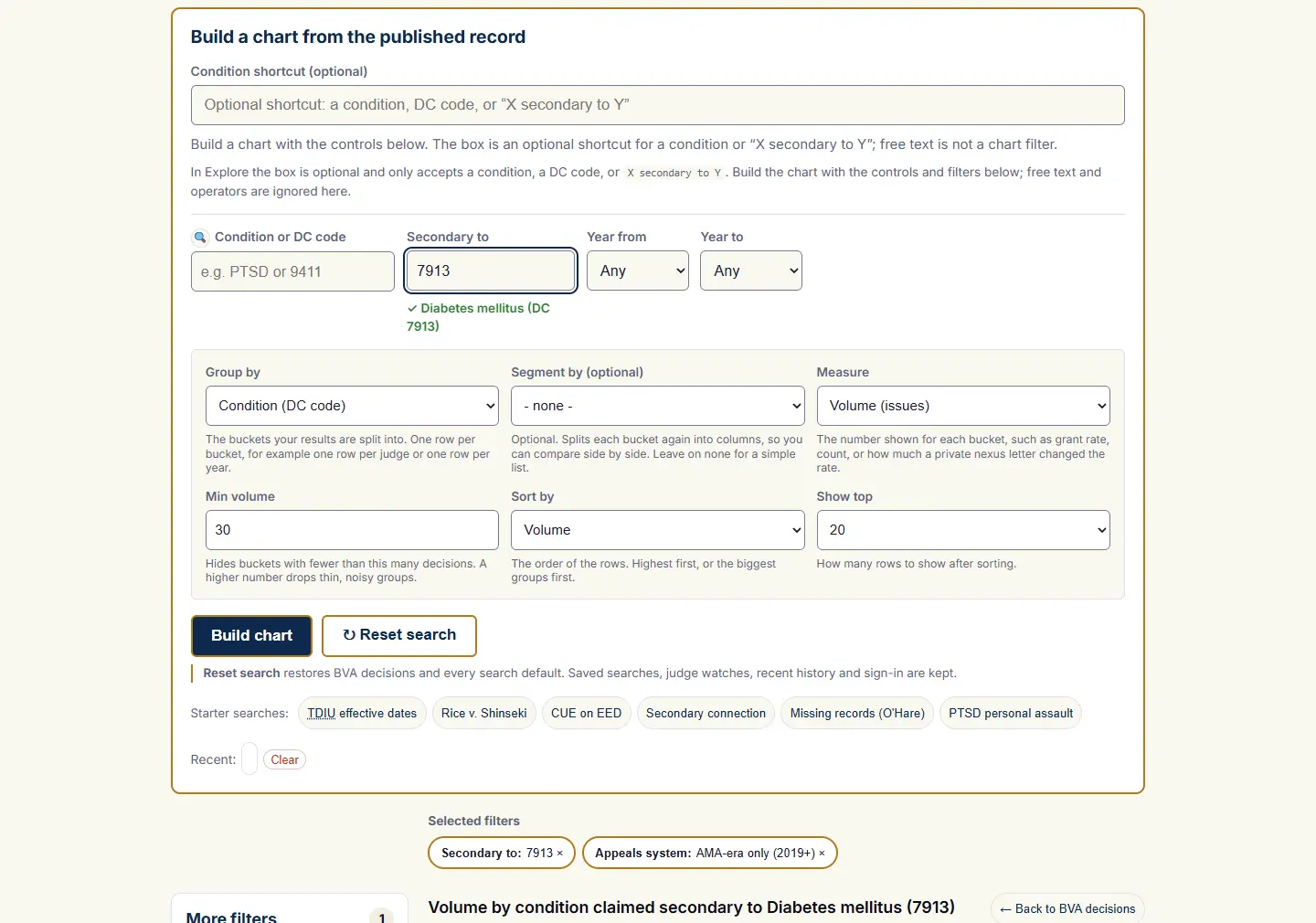
Explore: the primary condition in Secondary to; the claimed secondary conditions become rows.
What you get: one row for each condition claimed secondary to that primary, with the most common at the top.
What is my condition most often claimed secondary to?
The reverse view. Start from your condition and see which primary conditions it is most often linked to. The example below uses sleep apnea.
- Open the Advanced view, then select the Explore, build a chart tab.
- In the Condition box, type your condition, like sleep apnea, and pick it.
- Open the filter editor at Condition and service, set How claimed to Secondary to and Apply filters.
- Set Group by to Primary condition (secondary to / aggravated by). The Secondary to box is greyed out while this axis is selected, because the axis stands for every primary.
- Set Measure to Volume (issues).
- Select Build chart.
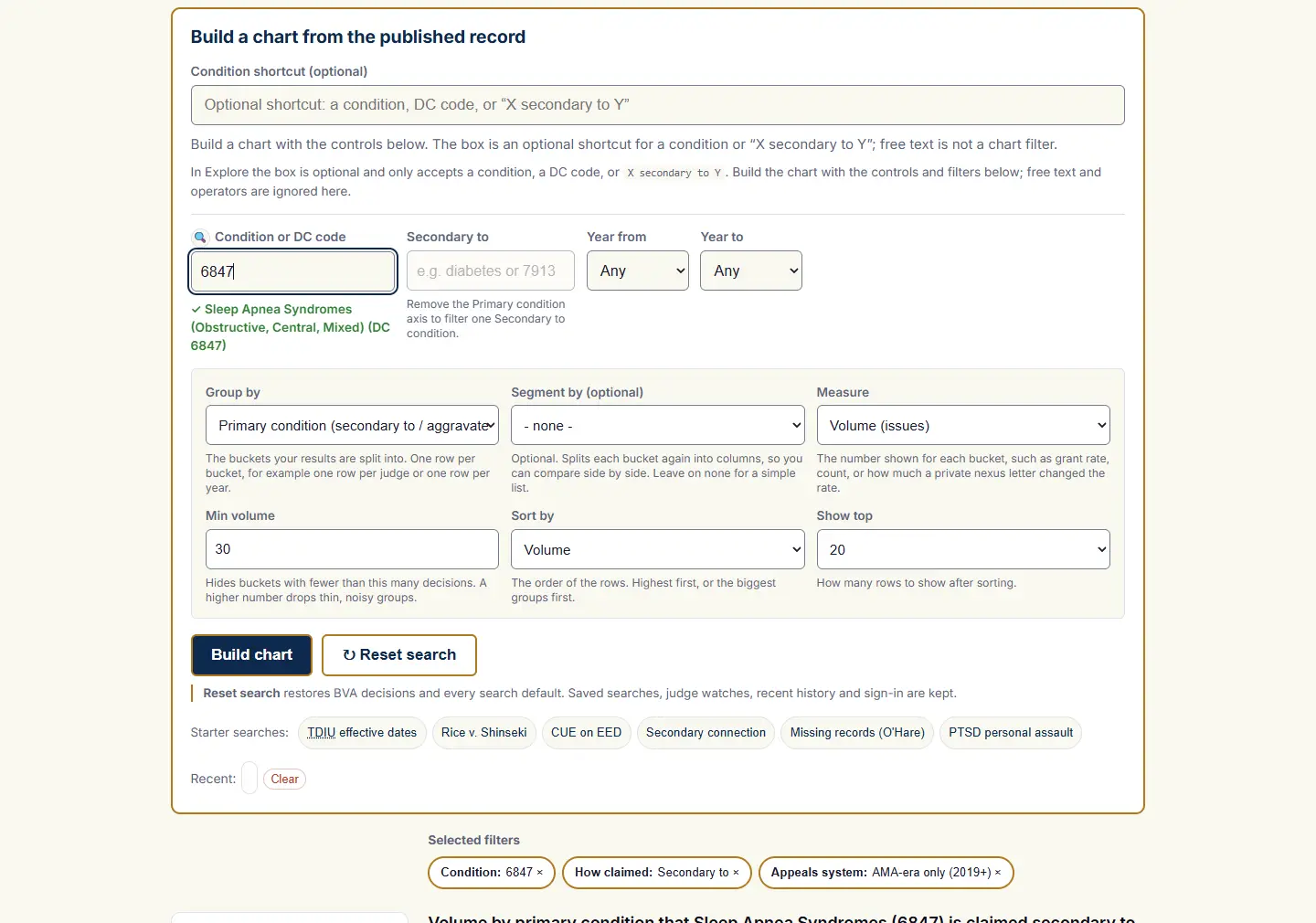
Explore: Condition is sleep apnea; its claimed primary conditions become rows.
What you get: one row for each primary condition, with the most common at the top.
Does the strength of the medical opinion change the odds?
A nexus opinion is a doctor's statement linking your condition to service. This shows the win rate for each strength of opinion. The example below uses PTSD.
- Open the Advanced view, then select the Explore, build a chart tab.
- In the Condition box, type your condition, like PTSD, and pick it.
- Set Group by to Medical opinion language.
- Set Measure to Win rate (of decided) and Sort by to Highest win rate.
- For modern results, open the filter editor, set Appeals system to AMA-era only and Apply filters.
- Select Build chart.
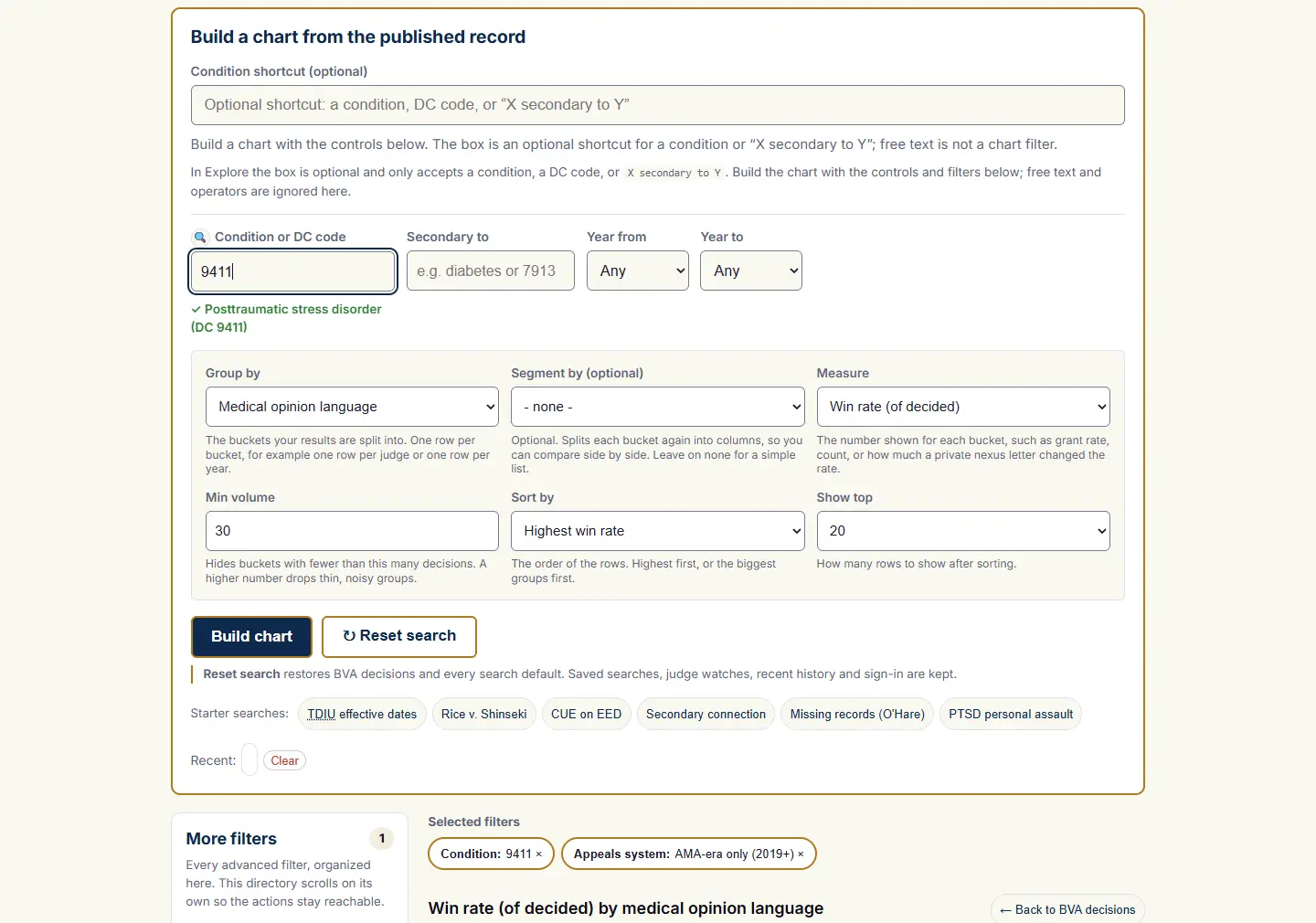
Explore: PTSD issues grouped by medical opinion language.
What you get: one row for each kind of opinion, such as "at least as likely as not" next to "no opinion," with the win rate beside each. Read it as a pattern in past cases, not a promise about yours.
When this condition is denied, what was missing?
Service connection needs three things: a current diagnosis, an in-service event, and a nexus that links them. This shows which one the Board most often found missing in denials. The example below uses PTSD.
- Open the Advanced view, then select the Explore, build a chart tab.
- In the Condition box, type your condition, like PTSD, and pick it.
- Set Group by to Missing element (denials).
- Set Measure to Volume (issues).
- For modern results, open the filter editor, set Appeals system to AMA-era only and Apply filters.
- Select Build chart.
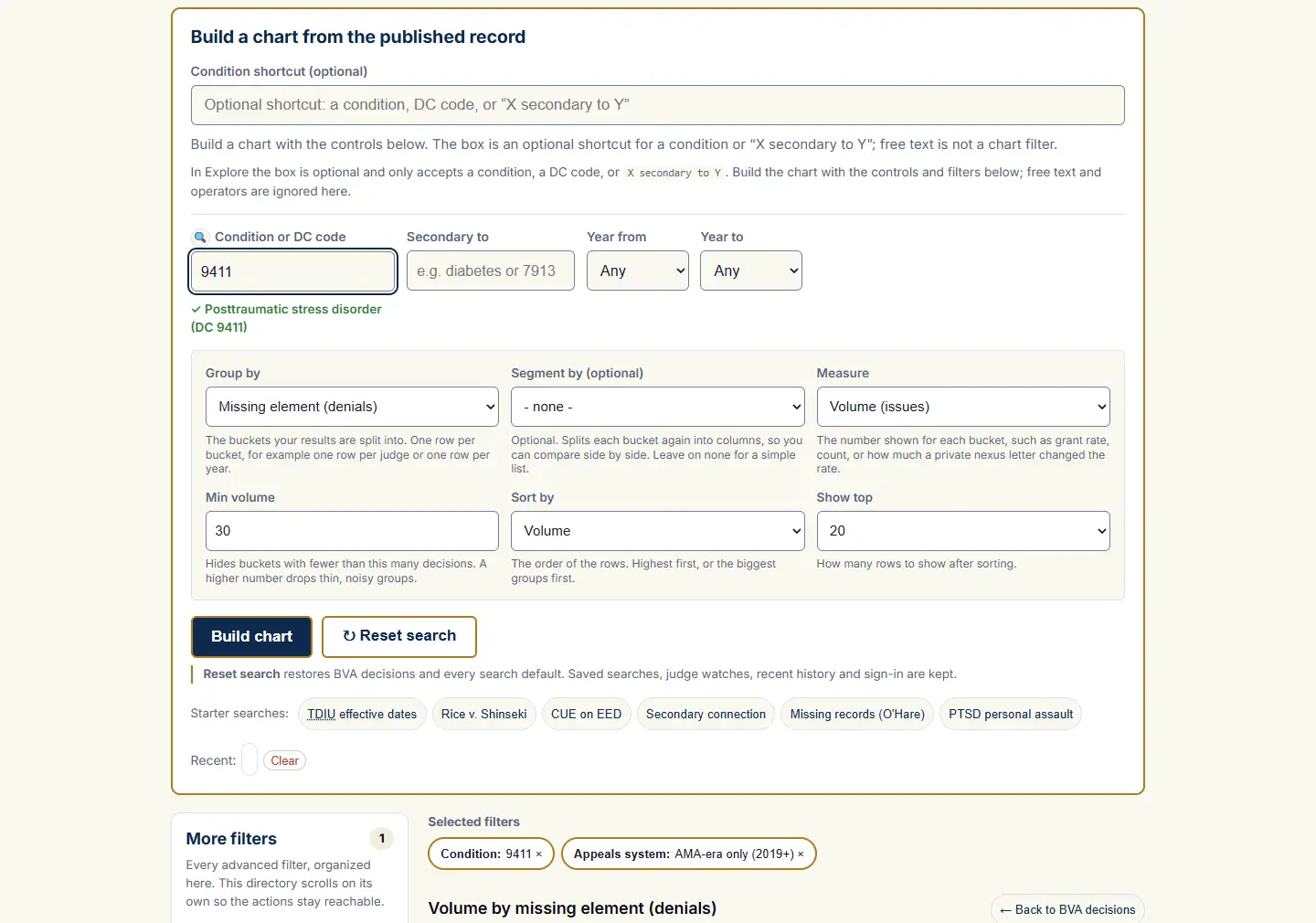
Explore: denied PTSD issues grouped by the missing element.
What you get: one row for each missing element, such as no current diagnosis or no nexus, with the most common at the top.
Read cases where the Board accepted the medical link
The Nexus finding filter pulls decisions by how the Board read the medical link on the issue you searched. Pair it with the "this issue" badge to see how each matched issue came out. The example below uses sleep apnea.
- Open the Advanced view and stay on the BVA decisions tab.
- In the Condition box, type your condition, like sleep apnea, and pick it from the list.
- Open the filter editor at Condition and service and set Nexus finding to Positive (favorable nexus).
- For modern results, set Appeals system to AMA-era only.
- Choose Apply filters, which runs the search.
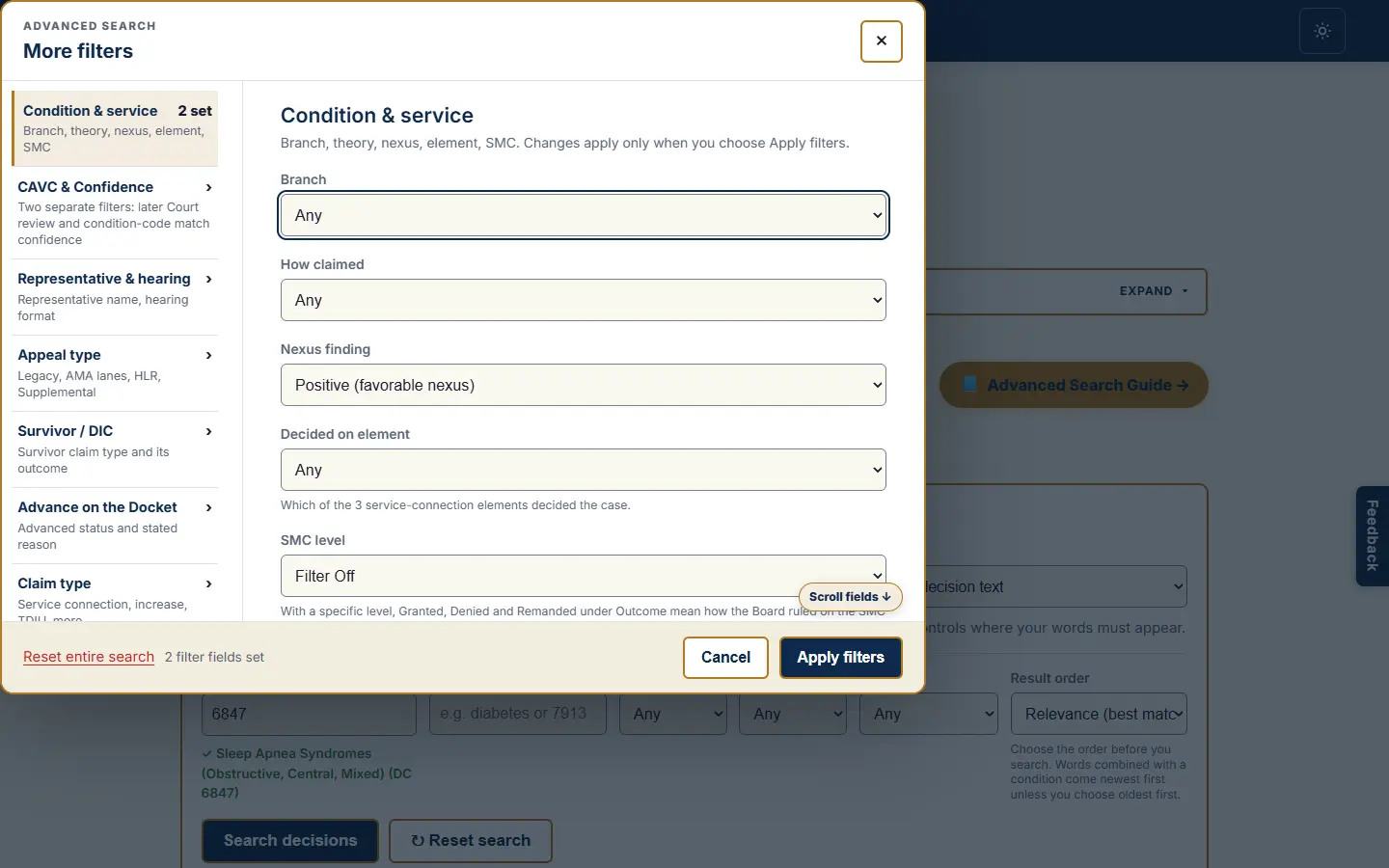
Search setup: sleep apnea with a positive nexus finding.
What you get: decisions where the Board found the medical link in the veteran's favor on that condition. Each result carries a "this issue" badge, because a decision marked mixed can still have granted the issue you searched.
Read denials that turned on the nexus element
When the Board denies service connection, one of the three elements was found missing. This recipe pulls denials where the nexus, the link between the condition and service, was the deciding element. The example below uses PTSD.
- Open the Advanced view and stay on the BVA decisions tab.
- In the Condition box, type your condition, like PTSD, and pick it from the list.
- Set Outcome to Denied.
- Open the filter editor at Condition and service and set Decided on element to Linked to service (nexus).
- For modern results, set Appeals system to AMA-era only.
- Choose Apply filters, which runs the search.
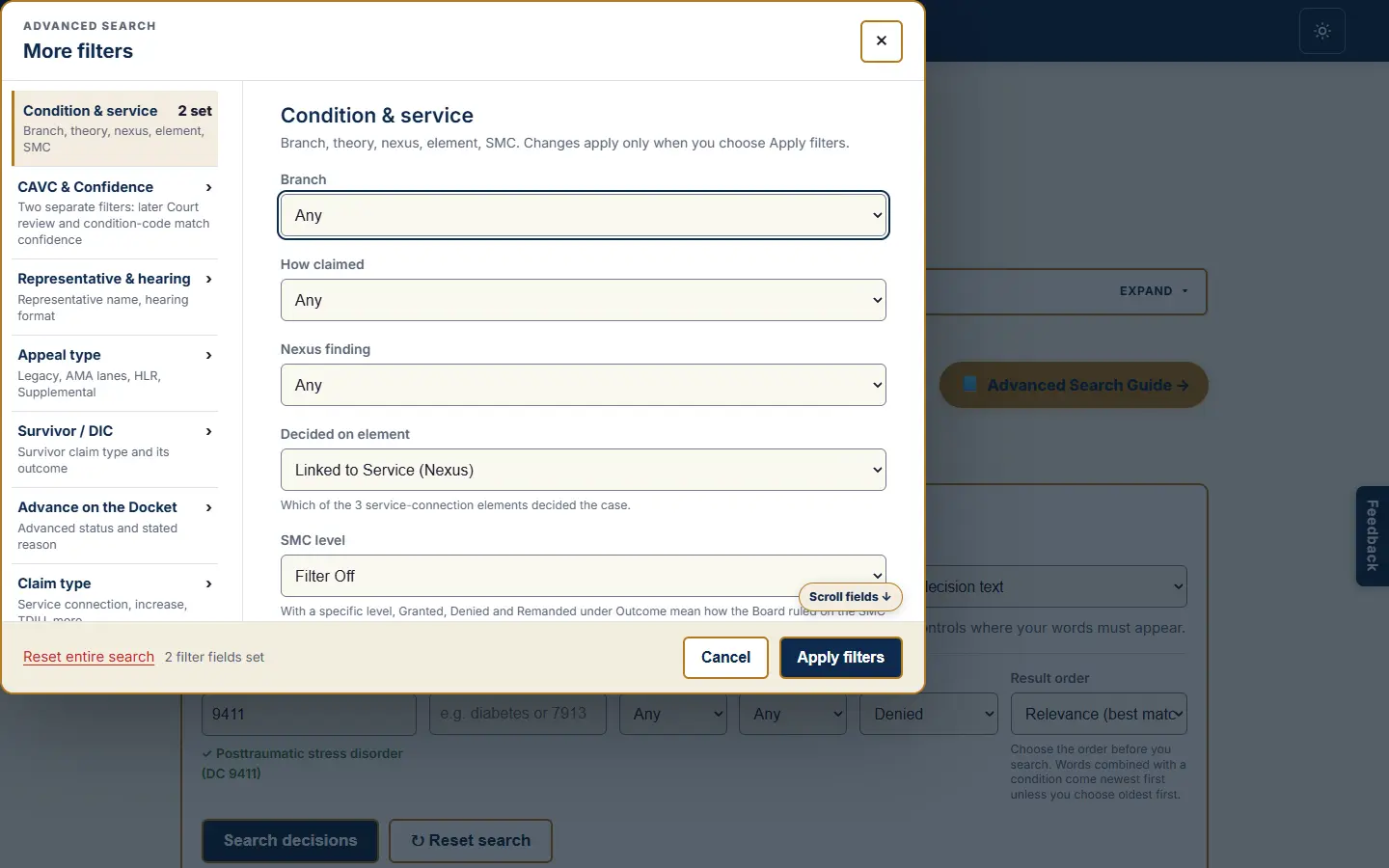
Search setup: PTSD denials where the deciding element was the nexus.
What you get: real denials that turned on the medical link. Reading them shows the reasoning the Board used in past cases. It is research, not a checklist for your own claim.
Read SMC decisions at one level
Special Monthly Compensation has lettered levels, SMC-K through SMC-T. The SMC level filter pulls decisions that ruled on one level. The example below uses SMC-S, the housebound rate.
- Open the Advanced view and stay on the BVA decisions tab.
- Open the filter editor at Condition and service and set SMC level to SMC-S.
- Choose Apply filters, which runs the search.
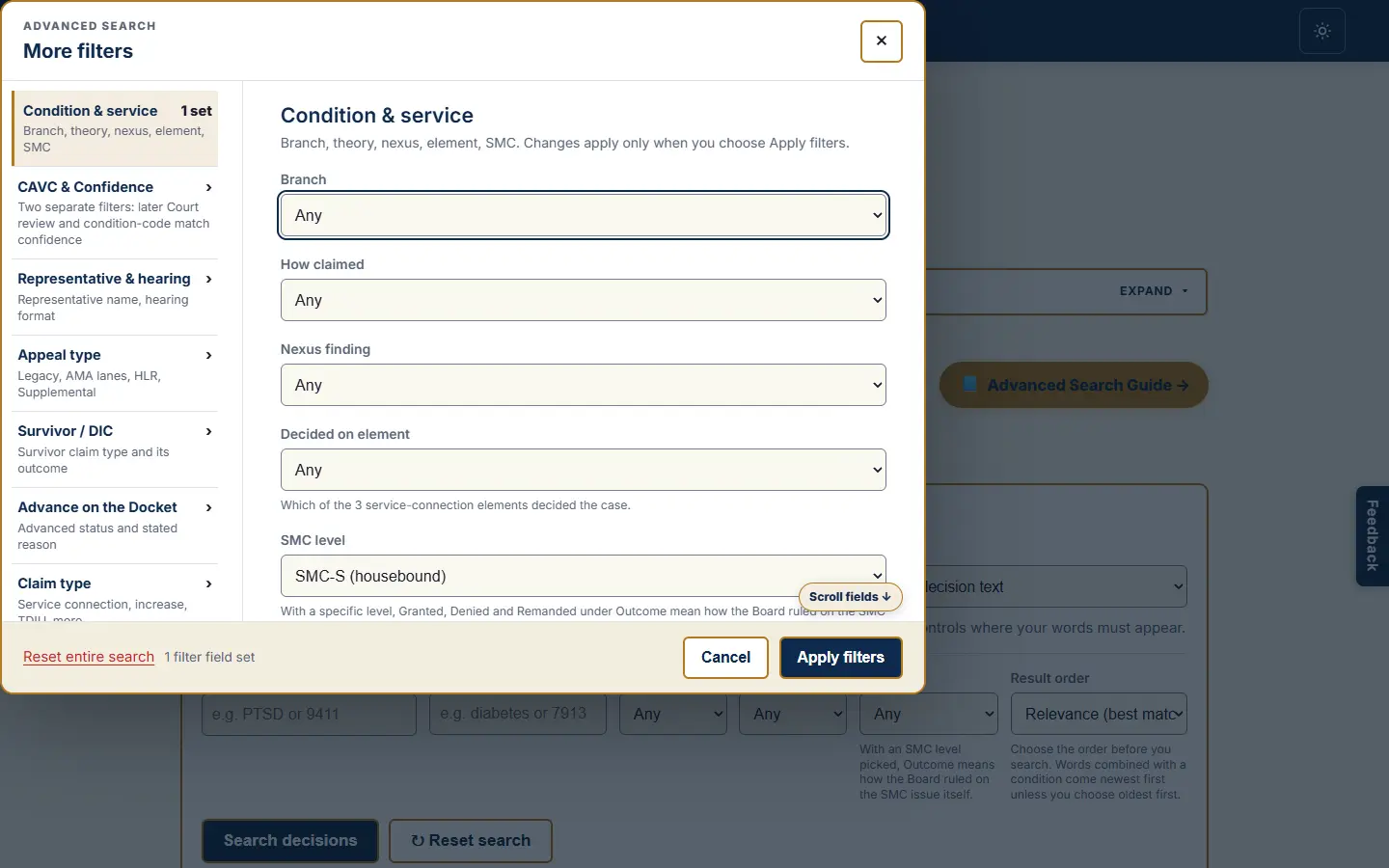
Filter editor: SMC-S selected under Condition and service.
What you get: decisions from our analyzed SMC set. With a specific level and an Outcome of granted, denied or remanded, the outcome describes the SMC issue's own ruling. For an all-years count of any SMC, pick "Any SMC Level" instead, which also works in Statistics.
Read toxic-exposure decisions for one exposure type
The Presumption / exposure checkboxes pull decisions involving one exposure type, such as burn pits or Agent Orange, across all years. The example below uses burn pits.
- Open the Advanced view and stay on the BVA decisions tab.
- Open the filter editor at Presumption / exposure.
- Check Burn pits.
- Choose Apply filters, which runs the search.
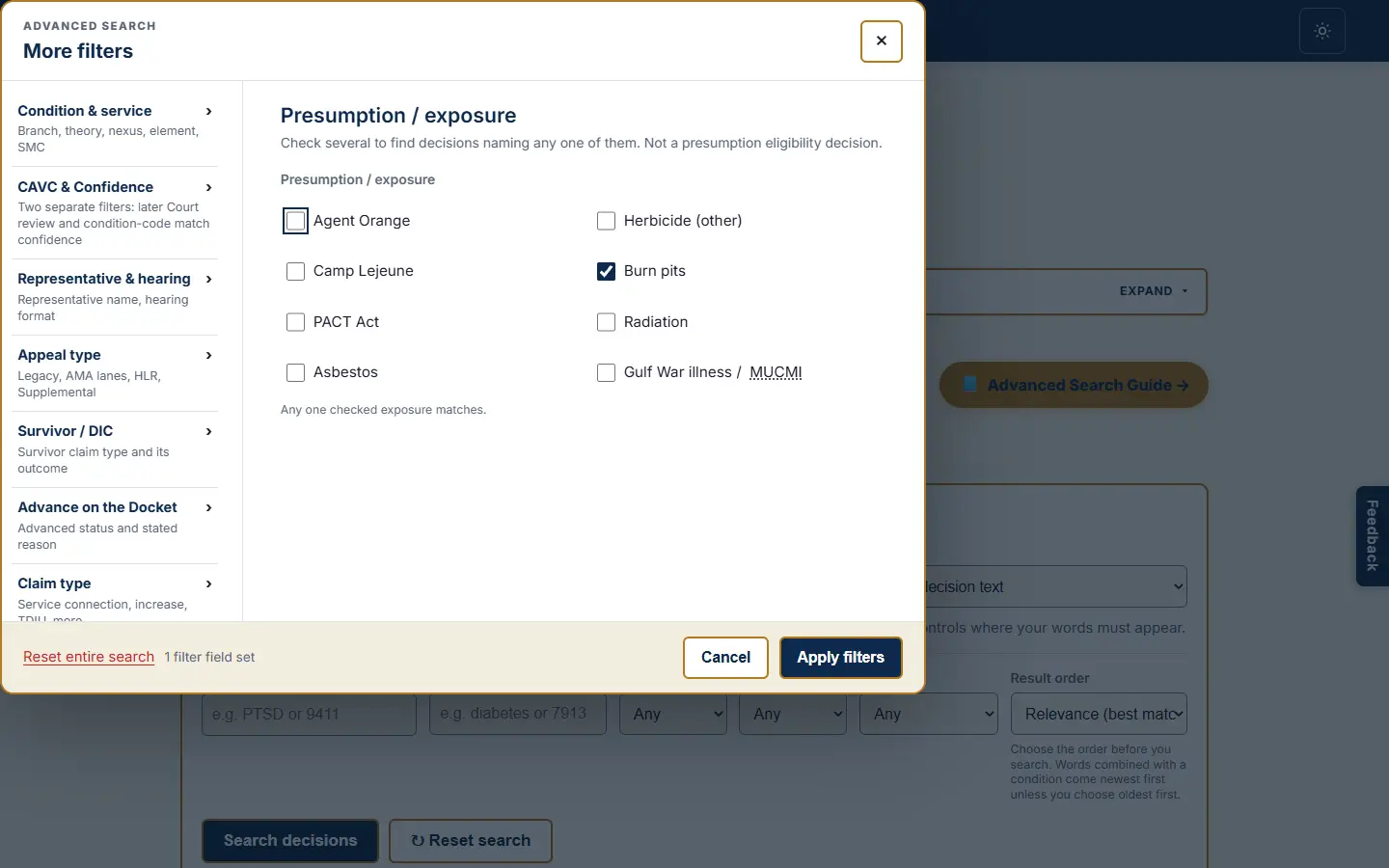
Filter editor: Burn pits selected under Presumption / exposure.
What you get: decisions involving that exposure, across the full archive. These checkboxes also work in Statistics and Explore. Two exposures checked together mean either one.
Find decisions where specific evidence was in the record
The Evidence in the decision checkboxes pull decisions whose text cited a piece of evidence, such as a private medical opinion or a buddy statement. The example below uses tinnitus with both boxes checked.
- Open the Advanced view and stay on the BVA decisions tab.
- In the Condition box, type your condition, like tinnitus, and pick it from the list.
- Open the filter editor at Evidence in the decision.
- Check Private medical opinion (nexus letter / IMO) and Buddy / lay statement.
- For modern results, set Appeals system to AMA-era only under Condition and service.
- Choose Apply filters, which runs the search.
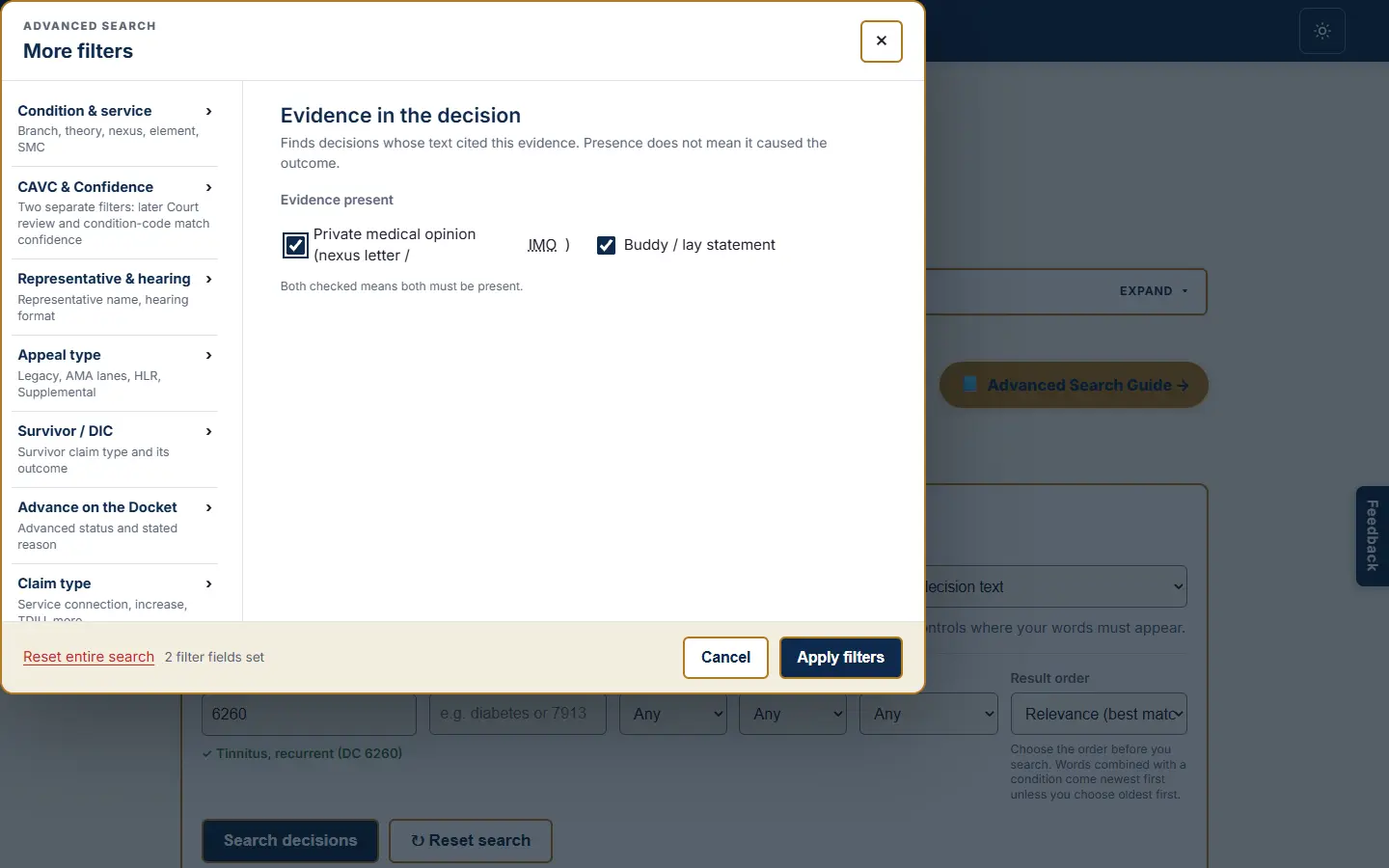
Filter editor: private medical opinion and buddy / lay statement selected for tinnitus.
What you get: decisions where that evidence appeared in the record. Both boxes together mean both were cited. Presence does not mean the evidence caused the outcome.
Modern Decisions vs Older Ones
Consider decisions from 2019 and later when that time period fits your research question. VA regulations and court rulings change over time, so an old decision may rest on rules that no longer apply. The Appeals Modernization Act took effect in February 2019 and reshaped how appeals work. Newer decisions reflect today's law more closely.
- In the Simple view: the Decisions pills at the top set this. Modern Era Only (2019 to present) is on by default; switch to All decisions to include older ones. Modern uses the decision year from 2019 in every output, so cases and numbers cover the same population.
- In the Advanced view: use the Appeals system filter for AMA-era only, Legacy, or all. You can also set Year from and Year to for a tighter window.
Calendar year and appeal system differ. Year from / Year to selects calendar years; Appeals system selects the AMA or Legacy docket. A legacy appeal can be decided in a modern year.
Judge Research: How the Board's Judges Have Ruled
The Judge research mode reports how individual Veterans Law Judges have decided published cases. Board judges are public officials, and the decisions they sign are public records. This mode counts those decisions and reports the patterns: the grant rate for a condition, where a judge ranks among their peers, and how two judges compare. Everything here is past, published fact. It is research, not a prediction of your appeal, and you do not choose your judge.
Select the Judge research tab. The Judge and Compare with (optional) boxes sit together at the top of the form, and the search box is hidden: there is no keyword field in this mode. Set the condition in the common Condition field. What you fill in decides what you get:
- A condition alone
- Leave both judge boxes empty and set a Condition. You get a leaderboard, the most-lenient and toughest judges on that condition, ranked by grant rate. Active judges only is available on this path only and limits the list to judges who decided cases in the latest data year.
- A judge plus a condition
- Fill the Judge box and the Condition for a deep dive. You get that judge's grant, denial, and remand split on the condition, where they rank among all judges, how a private nexus opinion moved their rate, their record by year, and their recent grants and denials.
- A judge alone
- Fill only the Judge box for that judge's report card across every condition, scoped by years only; any other filter is kept, not applied, and the notice says so.
- Two judges plus a condition
- Fill the Judge box, the Condition, and a different judge in Compare with to put the two side by side on the same condition. Compare with is only enabled once a first judge and a condition are set.
One Research action runs whichever path your inputs describe. Changing a name, the condition or a filter after a report shows a line saying the selections changed; the report stays until you choose Research again.
The thresholds, exactly. A judge counts on a condition once they have decided at least 20 issues on it (granted plus denied). The comparison cohort, the rank and the field median need at least three qualifying judges; with fewer, the report shows the judge's own numbers without a rank. A judge below 20 is shown with a small-sample flag and left out of the comparison. The separate 30-issue small-sample warning belongs to Statistics and Explore, not to Judge research.
The most-lenient and toughest judges for a condition
Leave the judge boxes empty and set only a Condition. The tool ranks every judge with at least 20 decided issues on that condition, highest grant rate and lowest. The example below uses PTSD.
- Open the Advanced view, then select the Judge research tab.
- Leave the Judge box empty.
- In the Condition box, type PTSD and pick it from the list.
- Optional: check Active judges only to limit the list to judges still deciding cases in the latest data year.
- For modern results, set Year from to 2019.
- Select Research.
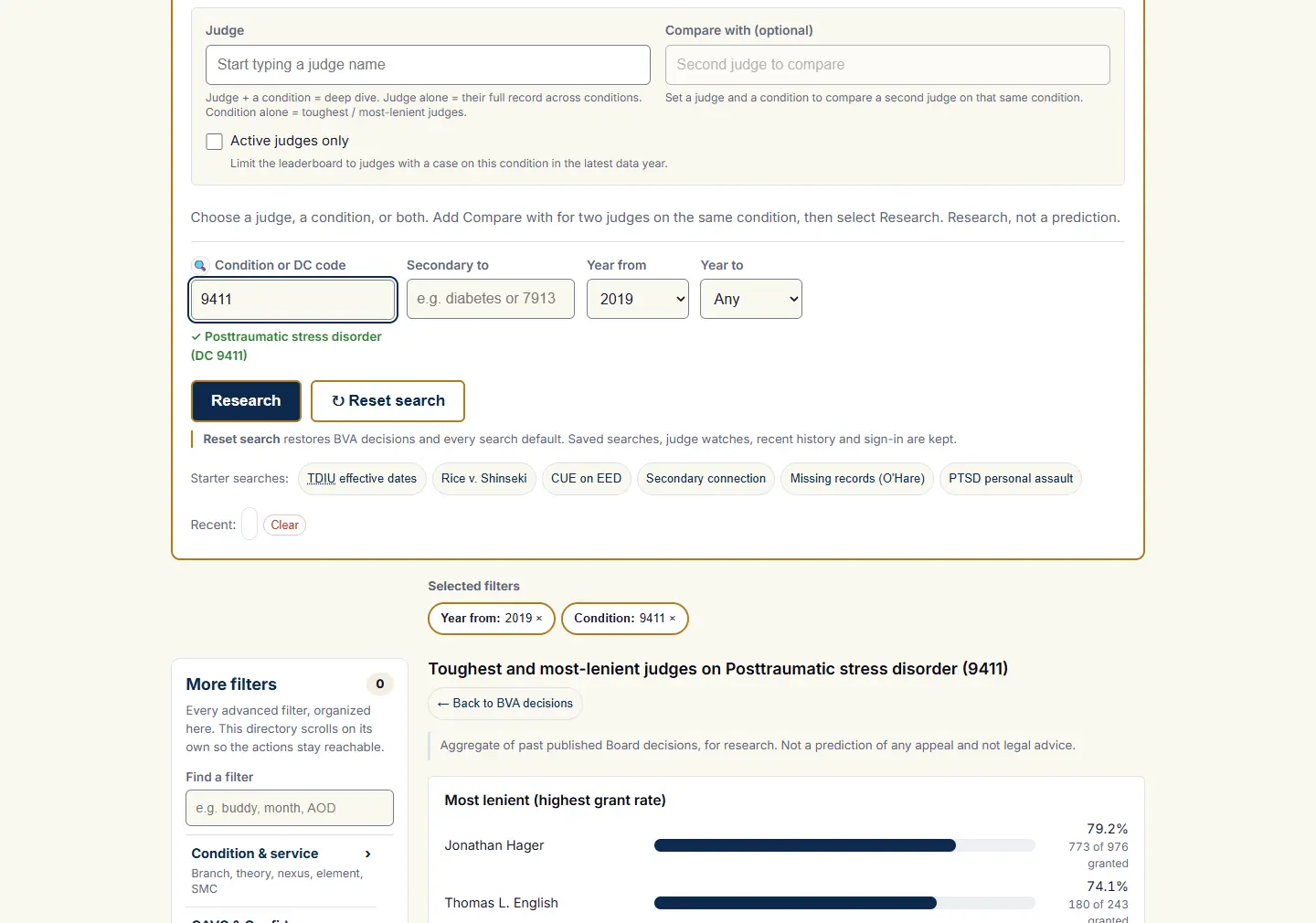
The condition-only leaderboard, with Active judges only available on this path.
What you get: two ranked lists for that condition, the highest grant rates and the lowest, with each judge's case count beside the rate. The footer shows how many judges met the minimum. Choose any judge to open their deep dive on that condition.
How one judge has ruled on a condition, and where they rank
Fill both the Judge box and the Condition for a deep dive on that pair. The example below is a judge on PTSD.
- Open the Advanced view, then select the Judge research tab.
- In the Judge box, start typing the judge's name and pick it from the list.
- In the Condition box, type PTSD and pick it from the list.
- For modern results, set Year from to 2019.
- Select Research.
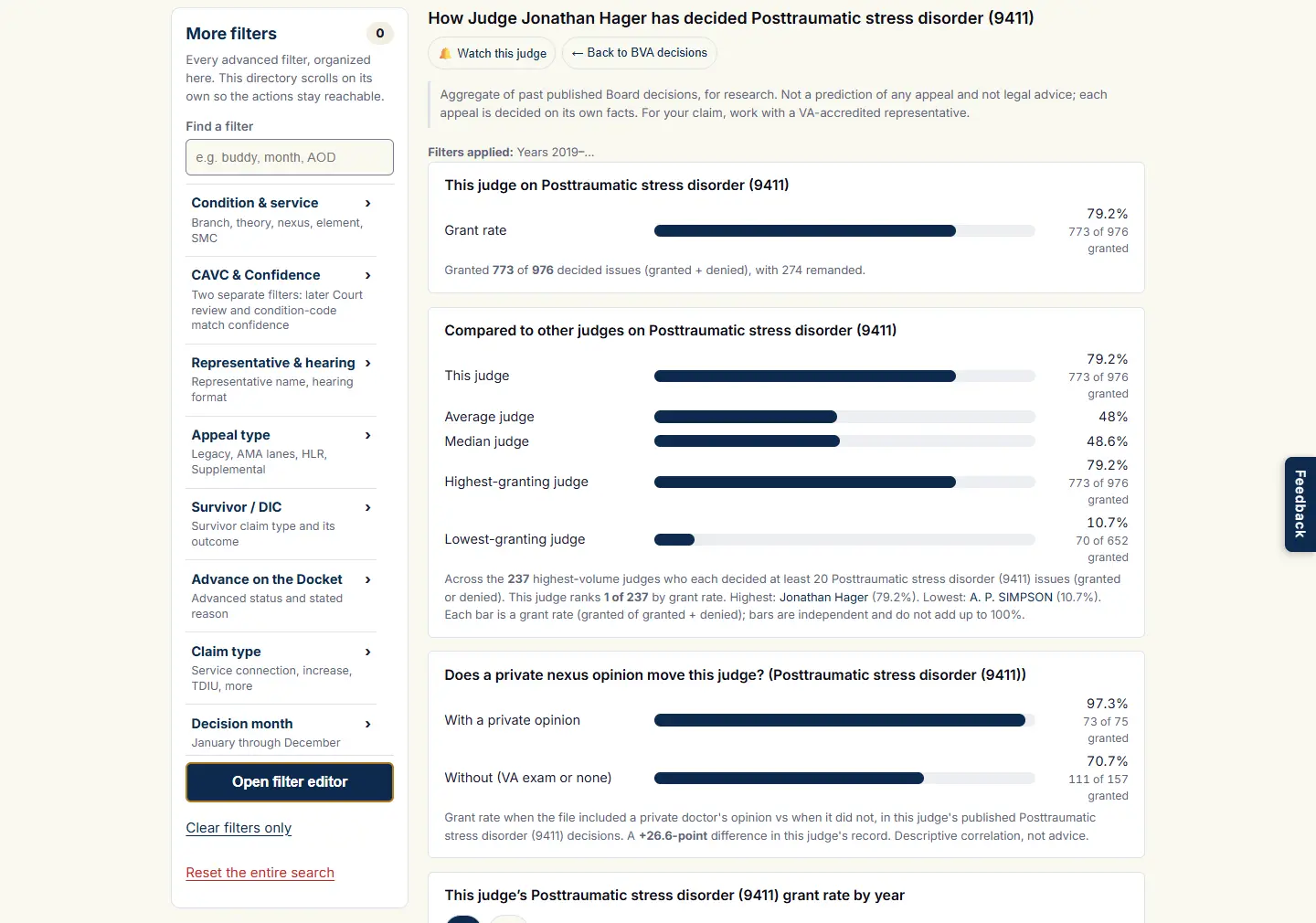
The Judge form and a condition-specific report. Judge and Compare with are visible at the top; there is no keyword field.
What you get: that judge's grant, denial, and remand rate for the condition, their rank out of all qualifying judges, the field median, how much a private nexus opinion shifted their rate, and a few recent grants and denials you can read in full. Signed-in users also get a Watch this judge button for a weekly email of new decisions by that judge on that condition.
Compare two judges on the same condition
Set a judge, a condition, and a second judge in the Compare with box. The example below compares two judges on PTSD.
- Open the Advanced view, then select the Judge research tab.
- In the Judge box, pick the first judge.
- In the Condition box, type PTSD and pick it from the list.
- In the Compare with box, pick the second judge.
- For modern results, set Year from to 2019.
- Select Research.
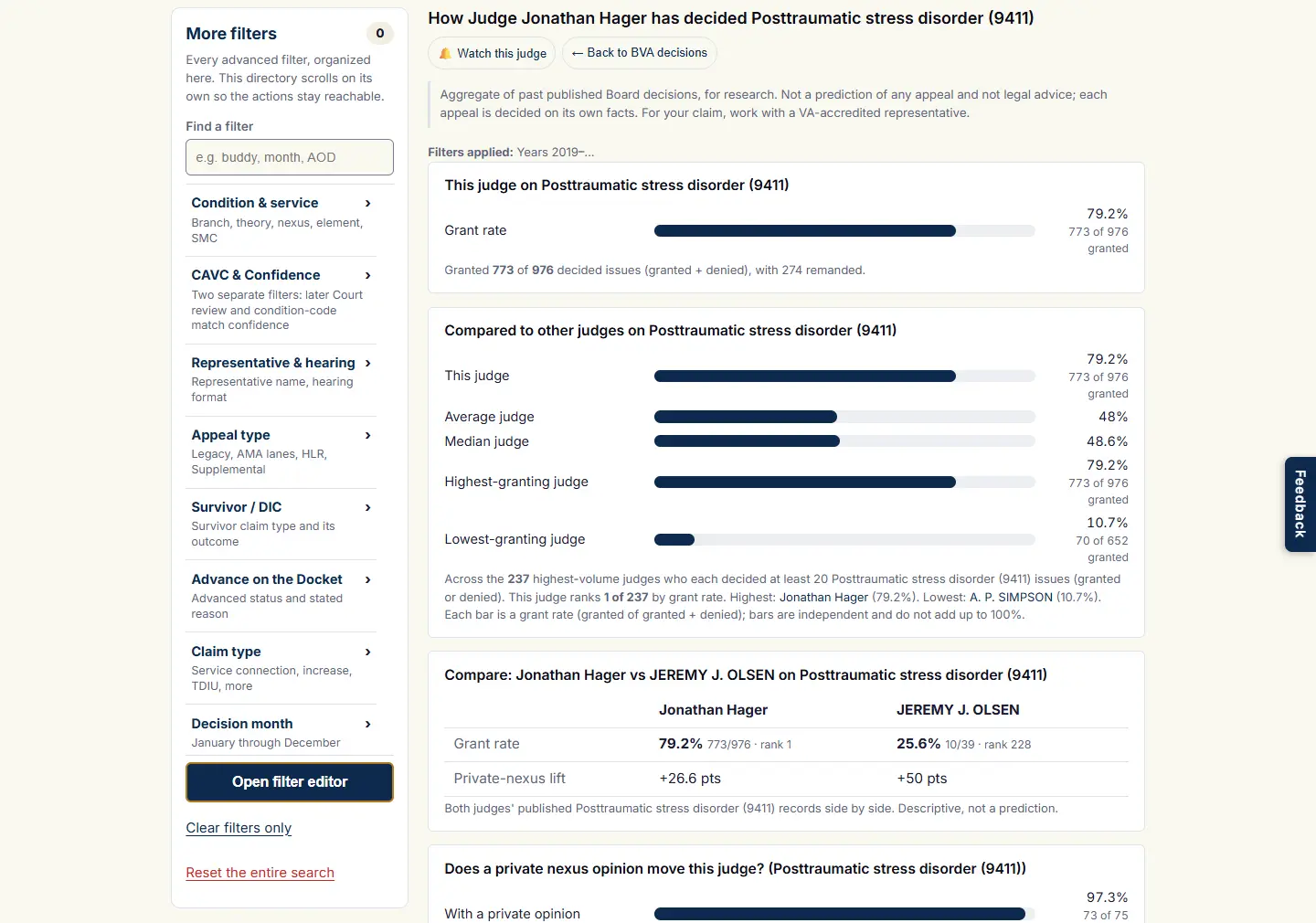
Two judges compared on the same condition.
What you get: the two judges next to each other on the same condition, each with their grant rate, their rank, and how many cases the rate rests on. Read it as a factual comparison of past decisions, not a verdict on either judge.
One judge's record across every condition
Fill only the Judge box for a report card: every condition that judge has decided with at least 20 issues, with the grant and remand rate for each, and how each compares with all judges when that comparison is available.
- Open the Advanced view, then select the Judge research tab.
- In the Judge box, pick the judge. Leave Condition and Compare with empty.
- Optionally set Year from and Year to; years are the only filter this path applies.
- Select Research.
What you get: the judge's conditions sorted by volume. Choose a row to research that judge on that condition.
Recent Searches, Saved Searches, and Judge Watches
Under the search surface, Recent searches lists your latest queries as chips; one click reruns that query. Clear recent searches clears only that history. Saved searches lists the searches you named; one click restores its words and every saved filter into the form and runs it once in BVA decisions. Fields the saved search does not carry are cleared, so what the form shows is what the rerun sent.
Save this search appears above a results list. It saves the search you just ran, not edits you have not applied. The dialog names the search and offers an optional weekly email of new matching decisions; leave the box unchecked for a plain bookmark. A saved search keeps the words, years, decision months, outcome, condition, branch, judge, representative, appeal type, hearing format and the checkbox filters. A search whose meaning depends on anything else, such as a Secondary to condition, How claimed, the appeals system, a specific SMC level, the Court match, confidence, claim types, Advance on the Docket, Search in, the result order, or the mentioning-anywhere scope, cannot be saved exactly: the dialog says which criteria would be lost and does not offer Save for that combination. Remove those criteria to save the rest.
Right-click or shift-click a saved search chip to remove it; removal also ends its weekly alert. Judge watches are subscriptions to one judge on one condition, created with the Watch this judge button in a deep dive; they list beside the saved searches and can be reopened or removed there. Reset keeps recent history, saved searches, alerts and watches.
Reset Search and Recovery
Reset search is reachable from the search row, the filter rail, and the filter editor. All three open the same confirmation, which states what goes and what stays.
- Reset clears
- The words, the results, every field and filter in every mode, the Explore builder settings, both judge names, and the search parameters in the address bar. It returns to BVA decisions with the default values.
- Reset keeps
- Your sign-in, recent-search history, saved searches and their weekly alerts, Judge watches, saved account work, your theme, and the Simple or Advanced preference.
- Recovery
- Reset also unregisters the site's service worker and deletes its cache storage for this site, then reloads the page from the network once. That is the fix when the page seems stuck after many mode switches. The cleanup is given four seconds; if the browser does not answer in time, the page reloads anyway, and a timeout is never reported as a completed cleanup.
- Smaller actions
- Clear filters only in the rail empties the fields and filters and keeps the words, results, history and saved work. The cross on a chip clears that one field. Cancel in the filter editor discards unapplied edits. Clearing recent history and removing a saved search or a watch are separate actions.
What Signed-Out Visitors See
A free account protects the index against scraping. Board decisions remain public and search stays free. The sign-in explanation, the privacy promises, and three example decisions remain readable before signing in.
You can sign in with Google, Apple, or an email and password. With Google or Apple, the site receives your name and email, never the provider password. We never sell, rent, or share your data with anyone. Your searches stay private to your account; the site does not track you across other websites; you can delete your account and its data at any time.
The three examples, A25110731, A25111329 and A25111306, are real public Board decisions. They illustrate the format and are not your search results. No search runs before you sign in.
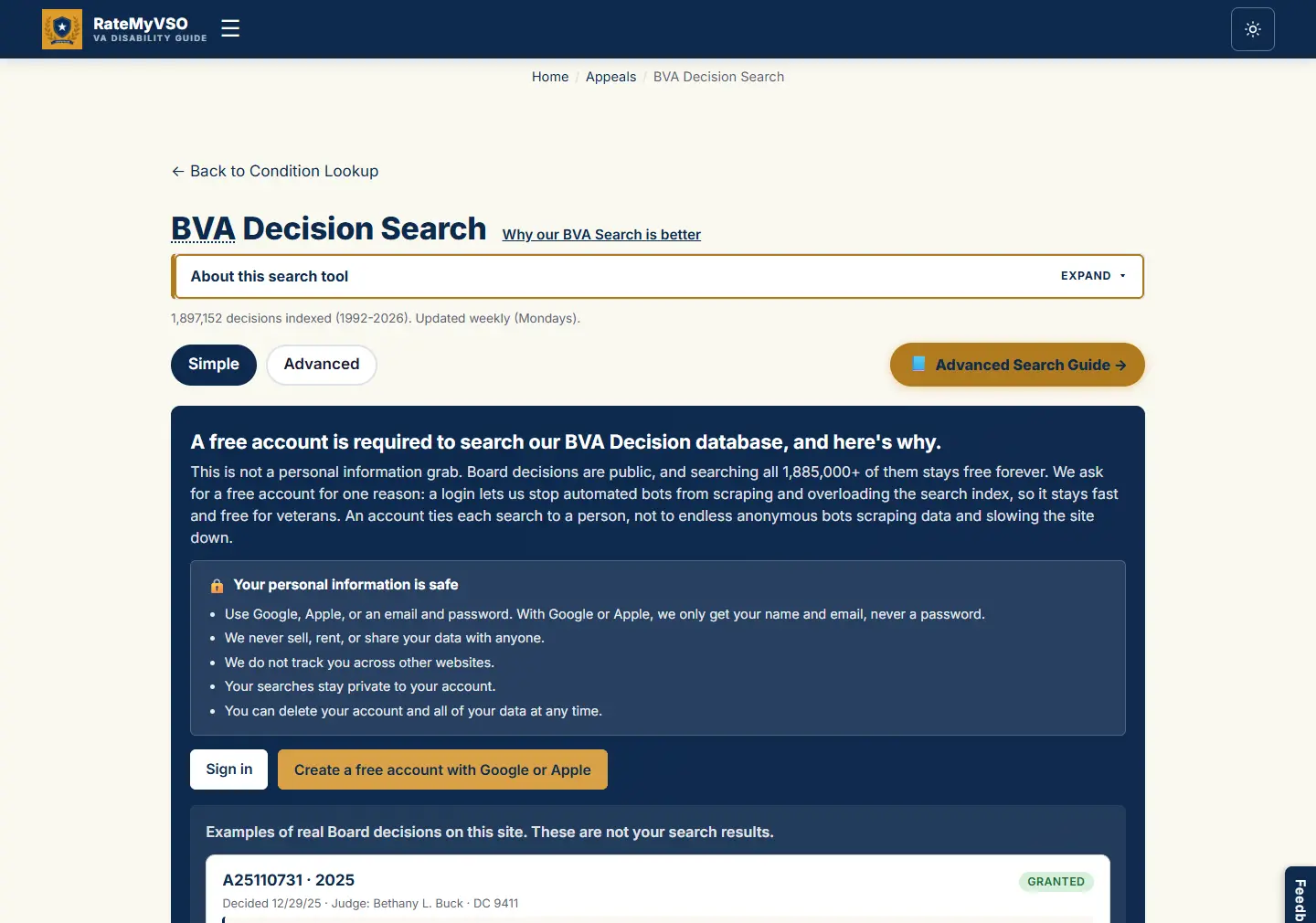
Public information remains available without running any search.
Frequently Asked Questions
Do I need an account to search?
What is the difference between Statistics and Explore?
How do I find what my condition is often claimed secondary to?
Why should I limit to decisions from 2019 and later?
Does a high grant rate mean my claim will be granted?
What does private-nexus lift mean?
Can I see which judges grant my condition most often?
Is it fair to rank a judge by grant rate?
What These Numbers Are, and Are Not
Everything in this tool describes decisions the Board has already issued. The rates are counts of past cases, grouped and reported. They are not a forecast of your appeal.
- Not a prediction. A high grant rate for a group does not mean your case will be granted. Each appeal turns on its own facts and evidence.
- Not legal advice. This tool reports patterns. It does not tell you what to file or how to argue. For your own claim, work with a VA-accredited representative.
- Not binding precedent. Board decisions are not binding on other cases. Use them to understand how the Board has reasoned, not as a rule that controls your appeal.
Related Tools and Guides
Disclaimer: BVA decisions are not binding precedent. Each appeal is decided on its own facts and evidence. Use this tool for research and pattern-spotting, not as legal advice, and not as a prediction of any individual claim. For help with your claim, find a VA-accredited representative.